First configuration
BimBeau Privacy Analytics provides a four-step configuration assistant for eligible new installations. It records only administrator choices and can be resumed or launched again from Settings → General.
Important
The assistant provides product configuration, not a guarantee of GDPR or other legal compliance. Site owners remain responsible for their legal basis, privacy notice, CMP configuration, and consent records.
The four steps
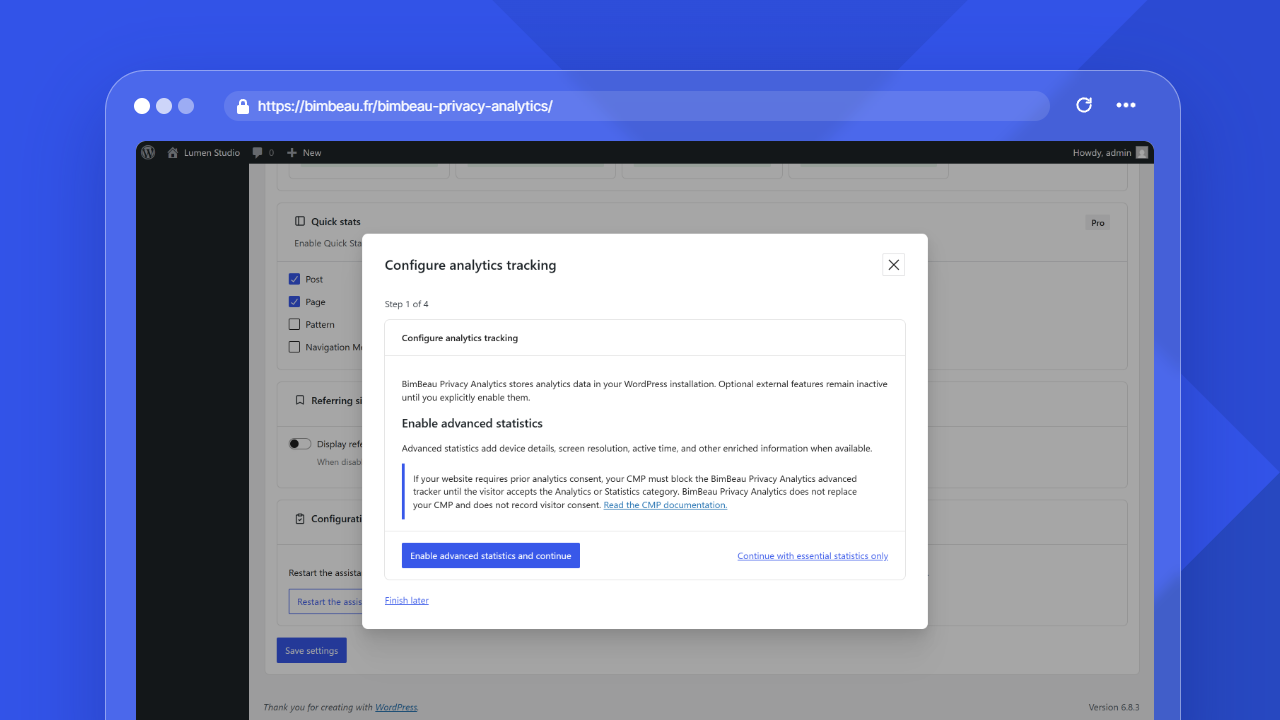
- Advanced statistics — Choose Enable advanced statistics and continue for enriched signals, or Continue with essential statistics only. When advanced tracking requires prior consent, configure your CMP to block
bbpa-advanced-trackeruntil the visitor accepts the Analytics or Statistics category. BimBeau Privacy Analytics does not provide a CMP or store visitor consent. - Local GeoIP database — Choose Download the GeoIP database and continue to make one explicit server-side request to the BimBeau GeoIP Database Service. Automatic updates remain disabled. Choose Continue without local geolocation to open a confirmation dialog instead; geographic origin, country, region, and city information remain unavailable until an administrator installs a database in Geolocation settings. Core traffic measurements continue.
- Referrer favicons — Choose Allow referrer favicons and continue to allow server-side retrieval of validated icons for referrer domains and local caching. Choose Continue without enabling favicons to keep the feature disabled and use the local generic icon.
- Summary — Review the reported advanced-statistics, local GeoIP, automatic-update, and favicon states, then choose Finish configuration.
Resume, relaunch, and existing sites
Closing the assistant marks it in progress and leaves a resume card on BBPA screens. Completing it removes that card and prevents another automatic opening. The assistant opens automatically at most once for an eligible new installation. A manual relaunch preserves current settings and never starts an external request until its corresponding primary action is clicked. Finishing the assistant saves only the advanced statistics and referrer favicon choices; access roles, exclusions, data retention, MaxMind credentials, and other settings keep their current values.
Existing installations keep their advanced-statistics behavior during upgrade. Referrer favicons are introduced disabled, and automatic GeoIP updates remain disabled unless an administrator explicitly selects a frequency.
Related documentation
Completion behavior
After every final save succeeds, the administration reloads to apply the saved tracking, geolocation, and favicon settings throughout the interface. A completion notice appears once after the reload. If local geolocation was skipped, one GeoIP database notice provides a link to the geolocation settings after onboarding is complete. A failed final save keeps the assistant open and does not display a completion notice.