Content analytics
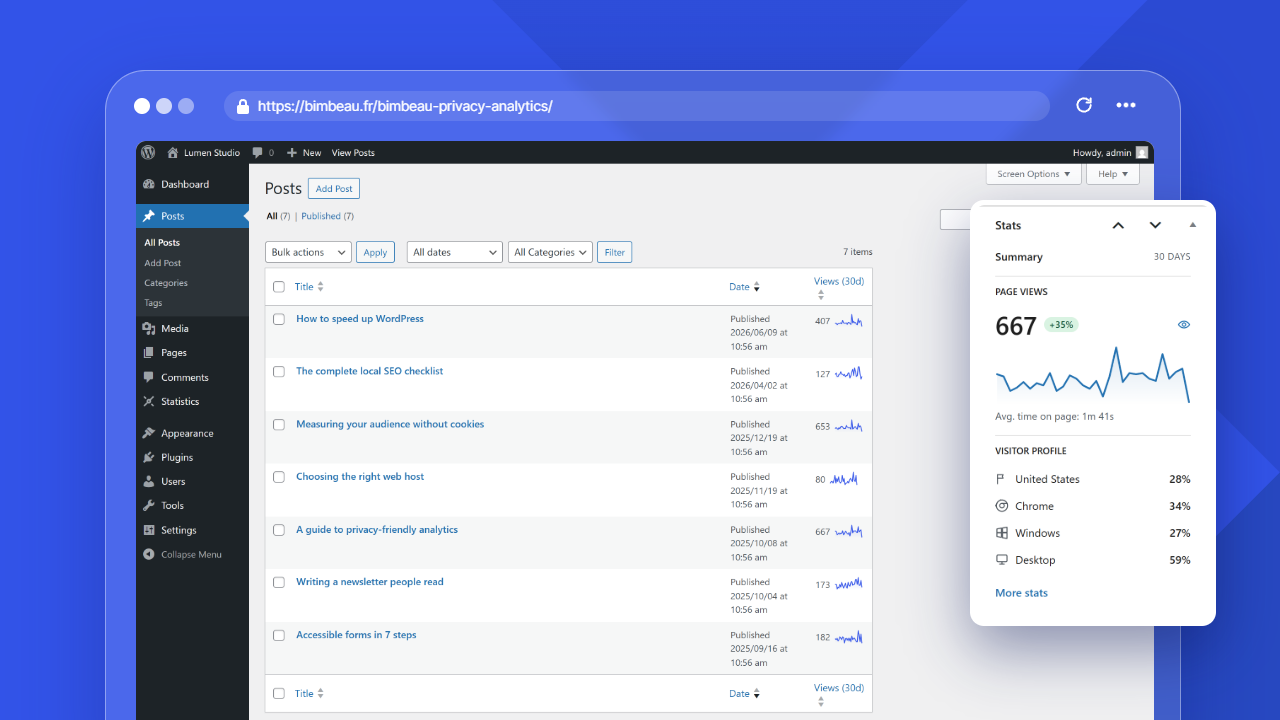
Content analytics is a BimBeau Privacy Analytics Pro feature that brings page and post performance context into normal WordPress content workflows.
Use Content analytics when editors, marketers, or site owners need quick traffic signals while managing or editing posts and pages.
Pro feature
Content analytics is available when BimBeau Privacy Analytics Pro is active, the user has access to BimBeau Privacy Analytics analytics, and Quick Stats is enabled for the relevant post type.
What appears in WordPress content lists
When Quick Stats is enabled for a supported post type, the WordPress content list can include a Views (30d) column.
The column shows:
- a compact total for the selected reporting period;
- an inline traffic chart that summarizes recent view trends;
- sorting support so high-traffic content can be grouped from the list table;
- a Page Details link when the content item has a publishable page path: the whole cell is clickable and announced to screen readers as View page details.
The column covers the last 30 days by default. No on-screen control changes this period, but you can add the period parameter to the list address, for example edit.php?post_type=page&period=90d. Accepted values are 7d, 30d, 90d, 6m, 12m, and 24m; the column heading then shows the selected period, for example Views (90d) or Views (6m). Any other value falls back to 30 days.
This view is useful for scanning many posts or pages without leaving the standard WordPress list screen.
What appears while editing content
When Quick Stats is enabled for the edited post type, the post or page editor can include a Stats metabox in the side panel.
The metabox summarizes the last 30 days for the current item and can show:
- page views;
- comparison with the previous period;
- a compact traffic trend chart;
- average time on page;
- visitor profile highlights such as top country, browser, operating system, or device class when data is available;
- when the item has a publishable page path, two links to Page Details: the eye icon next to the page views total (View page details) and the More stats link at the bottom of the metabox.
Use this metabox to review content performance while updating titles, copy, calls to action, or publication plans.
Supported content types
Quick Stats uses the selected post types from Statistics → Settings → General.
By default, the setting targets posts and pages. Administrators can select supported WordPress content types that expose a standard admin UI. Attachments are excluded.
Data behavior
Content analytics uses the same local BimBeau Privacy Analytics traffic data as the reporting screens. Metrics depend on tracking settings, consent behavior, available traffic, and whether the content item resolves to a public page path.
Views in the list column, the metabox and Page Details include visits whose URL carried tracked campaign parameters (for example utm_source or gclid, kept by the URL query allowlist), so totals match the Top Pages report.
The metabox Avg. time on page uses the same definition as Top Pages: active time measured on this page divided by the visits that reported time on it.
Sorting the list by views is available for lists of up to 500 items; above that, a notice explains that the list keeps its default order.
If an item has no matching path or no recorded traffic for the period, the list column or metabox can show empty or zero-value states.
How to enable Content analytics
- Go to Statistics → Settings → General.
- Find Quick stats.
- Select the post types where editors need content-level analytics.
- Save the settings.
- Open the relevant WordPress content list or edit screen.