Consent and CMP setup
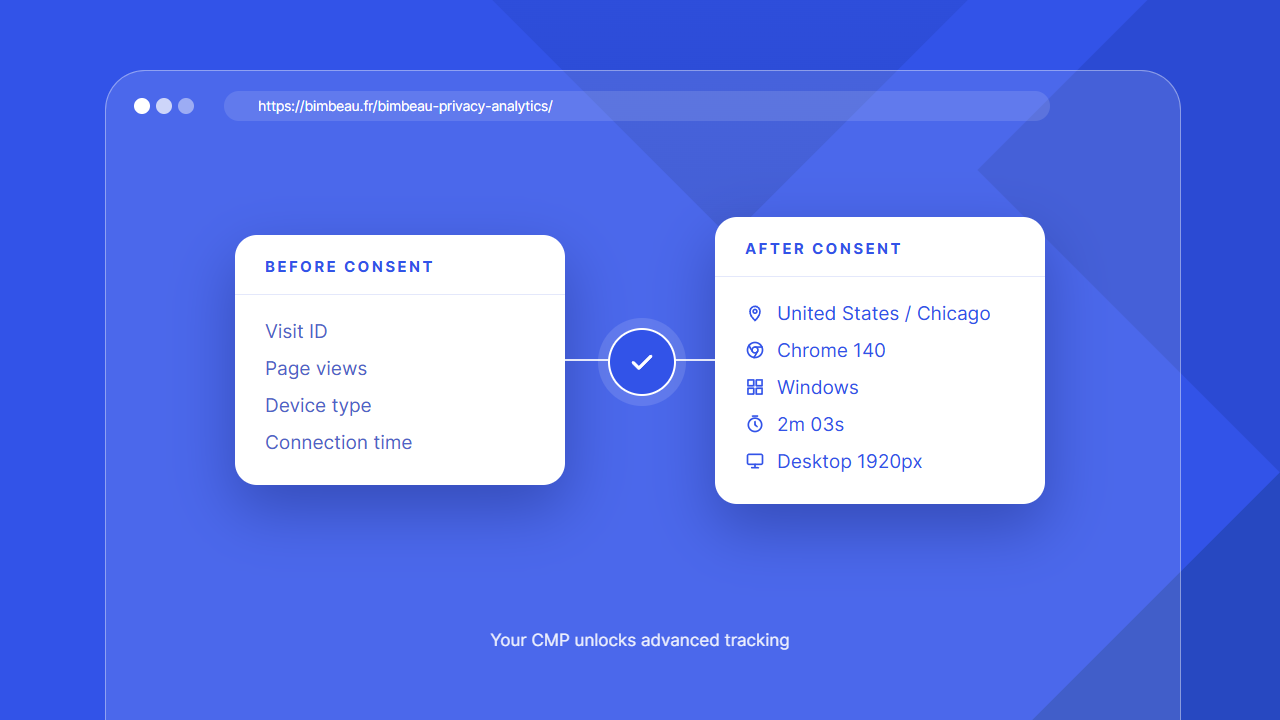
BimBeau Privacy Analytics is designed to work alongside your consent management platform, cookie banner, or privacy workflow.
This page explains how BimBeau Privacy Analytics fits into a consent-based analytics setup and what you should verify when using advanced tracking.
Important
This page is not legal advice. Consent requirements depend on your jurisdiction, audience, website configuration, and privacy policy. Always review your setup with the appropriate legal or compliance guidance when needed.
BimBeau Privacy Analytics and consent
BimBeau Privacy Analytics separates analytics collection into two levels:
Essential tracking provides baseline aggregate analytics with minimal collection. It is intended to keep core reports available according to your BimBeau Privacy Analytics configuration.
Advanced tracking can add richer analytics signals when enabled and when your consent workflow allows it to run.
BimBeau Privacy Analytics does not decide your legal basis for analytics collection. It provides technical controls that you can align with your own privacy requirements.
What a CMP should control
If your website requires consent for advanced analytics, your CMP should control whether the advanced BimBeau Privacy Analytics tracker is allowed to run.
A CMP may also be called a:
- consent management platform;
- cookie consent banner;
- privacy banner;
- consent tool;
- tag manager consent layer.
Good to know
BimBeau Privacy Analytics is not a CMP. It does not replace your cookie banner, consent records, privacy policy, or legal compliance process.
Recommended consent model
A common setup is to allow essential analytics according to your policy, while blocking advanced tracking until the visitor grants the required analytics consent.
-
Configure BimBeau Privacy Analytics settings
Open Statistics → Settings → Tracking & privacy and review your analytics configuration.
-
Identify the advanced tracker
Configure your CMP so it can block or release the BimBeau Privacy Analytics advanced tracking script according to the visitor consent choice.
-
Assign it to the right consent category
In most CMP setups, advanced analytics belongs to a statistics or analytics category. Use the category that matches your privacy policy and consent wording.
-
Test before consent
Open your site without granting analytics consent and confirm that advanced tracking does not run when it should be blocked.
-
Test after consent
Grant analytics consent and confirm that advanced tracking can run and enriched reports become available where expected.
Advanced tracker identifiers
When configuring a CMP, you may need to identify the BimBeau Privacy Analytics advanced tracker script.
The advanced tracker can typically be identified by:
| Identifier type | Value |
|---|---|
| Script file | assets/js/bbpa-advanced-tracker.js |
| WordPress script handle | bbpa-advanced-tracker |
| Script element ID | bbpa-advanced-tracker-js |
Good to know
The exact CMP interface depends on the consent tool you use. Some tools block scripts by file URL, others by script ID, handle, category, or tag configuration.
Block by pattern, not by exact URL
WordPress adds the plugin version to the script URL, for example bbpa-advanced-tracker.js?ver=8.45.204, and this version changes with every update. A rule that compares the exact URL stops matching after the next update, and the advanced tracker then runs before consent.
Use a rule that matches part of the URL, such as bbpa-advanced-tracker (called a pattern, regex, wildcard or "contains" rule depending on the tool), or a rule based on the script element ID. After each update, repeat the before analytics consent test.
Cached-page fail-closed behavior
The CMP is responsible for consent decisions and for blocking or releasing the advanced tracker. BimBeau Privacy Analytics does not infer consent from CMP cookies, banner state, or vendor-specific APIs.
If a cache or optimization layer executes assets/js/bbpa-advanced-tracker.js while the canonical #bbpa-advanced-tracker-js script tag remains marked as a non-executable CMP script, such as type="text/plain", the advanced runtime stays inactive. In that state it does not send enrichment updates, start heartbeat tracking, or bind advanced event triggers. When the CMP later makes the canonical script executable and browser bootstrap events run, the advanced runtime starts and enriches the existing visit.
What to test
After configuring your CMP, test the behavior in a private browsing window or a browser profile where no previous consent is stored.
Before analytics consent
Confirm that:
- your consent banner appears as expected;
- advanced tracking is blocked if your policy requires it;
- essential BimBeau Privacy Analytics reports remain available according to your configuration;
- enriched fields may be limited, private, or unavailable.
After analytics consent
Confirm that:
- the visitor can grant analytics consent;
- the advanced BimBeau Privacy Analytics tracker is allowed to run;
- enriched analytics signals can be collected where available;
- reports such as Visitors, active time, geolocation enrichment, Page Details, or Events behave as expected for your setup.
Important
Do not only test as a logged-in administrator. Your WordPress role, browser state, caching layer, or CMP preview mode can affect what you see.
Cache and optimization plugins
Some cache, performance, or script optimization plugins can change how JavaScript files are loaded.
If you use such tools, make sure they do not break BimBeau Privacy Analytics tracking or your CMP rules.
Recommended checks:
- exclude BimBeau Privacy Analytics tracking scripts from aggressive script delay or combine rules if tracking stops working;
- confirm that the CMP still recognizes the advanced tracker after optimization;
- test with cache enabled and disabled;
- test as a logged-out visitor.
Good to know
If your optimization plugin changes script URLs or combines files, your CMP may no longer match the original advanced tracker identifier. In that case, adjust the CMP rule or exclude the tracker from that optimization.
Common CMP scenarios
Use the advanced tracker file path as the matching rule. Make sure the match still works if your site uses a CDN, cache plugin, or asset optimization tool.
Use the script element ID when your CMP supports blocking or releasing script tags by ID.
Assign the advanced tracker to the analytics or statistics category that matches your consent banner and privacy policy.
Signs that advanced tracking is blocked
Advanced tracking may be blocked or unavailable if you notice that:
- visitor rows show limited, private, or unavailable fields;
- active time is missing or incomplete;
- enriched geolocation details are unavailable;
- event tracking does not run;
- Page Details or deeper reports do not show enriched data;
- browser developer tools show that the advanced tracker was blocked.
This can be expected when analytics consent has not been granted.
Troubleshooting checklist
-
Check BimBeau Privacy Analytics settings
Confirm that advanced tracking and related features are enabled in BimBeau Privacy Analytics when you expect them to run.
-
Check the CMP category
Confirm that the advanced tracker is assigned to the correct analytics or statistics category.
-
Check visitor consent state
Clear consent, reload the site, and test both declined and accepted states.
-
Check the blocking rule after an update
If the advanced tracker runs before consent after a plugin update, check that the CMP rule matches
bbpa-advanced-trackeras a pattern and does not contain an exact URL with?ver=. -
Check script optimization
Temporarily disable script optimization or exclude BimBeau Privacy Analytics tracking scripts to confirm whether optimization is interfering.
-
Check as a logged-out visitor
Open the website in a private window and test as a normal visitor rather than as a WordPress administrator.
Related settings
Review Tracking and privacy for the settings that control essential tracking, advanced tracking, DNT / GPC behavior, session grouping, URL cleanup, role exclusions, and debug mode.
Next step
Continue with Data retention to understand how long BimBeau Privacy Analytics keeps analytics data.
The first configuration assistant explains that enabling advanced statistics does not collect CMP consent. Configure the CMP to block the advanced tracker until the appropriate category is accepted.