PWA Stats App
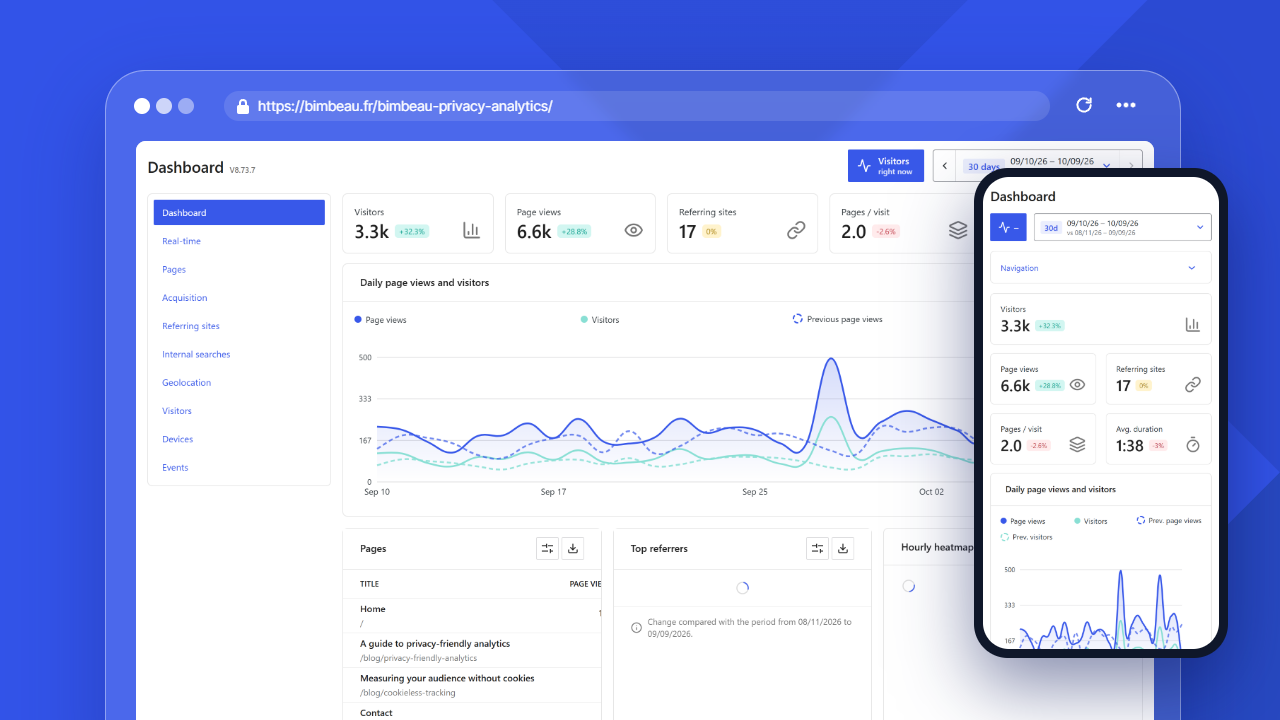
The PWA Stats App is a BimBeau Privacy Analytics Pro feature that provides a dedicated app-like interface for viewing your analytics.
Use it when you want a focused BimBeau Privacy Analytics experience separate from the standard WordPress admin layout.
Good to know
The PWA Stats App is a Pro feature. If it is not visible, check that your Pro license is active and that your WordPress user has access to BimBeau Privacy Analytics Pro features.
What the PWA Stats App is for
The PWA Stats App is designed to make BimBeau Privacy Analytics feel more like a standalone analytics application.
Depending on your configuration, it can help you:
- access BimBeau Privacy Analytics from a dedicated app URL;
- view analytics in a more focused interface;
- reduce distractions from the standard WordPress admin layout;
- use app-like browser behavior when supported;
- give authorized users a dedicated analytics entry point.
When to use it
Use the PWA Stats App when:
- you check analytics frequently;
- you want a clean analytics-only workspace;
- you manage reports for a client or team;
- you prefer an app-like interface on desktop or mobile;
- you want a dedicated access path for BimBeau Privacy Analytics reporting.
Good to know
The PWA Stats App does not replace the normal BimBeau Privacy Analytics admin screens. It provides another way to access supported BimBeau Privacy Analytics reports and workflows.
Access requirements
To use the PWA Stats App, you generally need:
- BimBeau Privacy Analytics Pro active;
- a WordPress user account with permission to access BimBeau Privacy Analytics;
- a browser that supports the app experience you want to use;
- a working site configuration that does not block required BimBeau Privacy Analytics app assets;
- valid authentication when opening the app.
Opening the app
The app URL is available from App settings when the PWA Stats App is available for your plan and user permissions.
A typical workflow is:
-
Confirm Pro is active
Make sure BimBeau Privacy Analytics Pro is active and connected to the correct license or account. Without an active Pro, the app address shows a message saying that it is available in Pro only.
-
Open BimBeau Privacy Analytics settings
In WordPress, open Statistics → Settings → App.
-
Open the app link
Click Open PWA, or copy the URL with Copy URL to open it on another device.
-
Sign in if required
If you are not signed in to WordPress in this browser, the app shows its sign-in screen. Sign in with an authorized WordPress account.
-
Review your analytics
Use the app interface to access supported BimBeau Privacy Analytics reports and workflows.
Desktop and mobile experience
The PWA Stats App can be useful on both desktop and mobile, depending on your browser and site configuration.
On desktop, it can provide a focused analytics workspace next to your other work tools.
On mobile, it can provide quick access to reports when you want to check analytics without navigating the full WordPress admin.
Installing the app
Some browsers let you install the PWA Stats App or add it to your device home screen.
When the browser offers installation, the app can show its own Install BimBeau Privacy Analytics app banner with an Install app button. This banner does not appear when the app is already open in installed mode, and you can dismiss it.
On supported desktop browsers, an install option may appear in the browser address bar or menu when you open the app.
On supported mobile browsers, you can add the app to your home screen from the browser share or menu options, for example with Add to Home Screen.
Good to know
Installation depends on the browser, device, operating system, HTTPS, caching rules, and site configuration. If no install option appears, you can still use the app in the browser when access is available.
Authentication and sessions
The PWA Stats App uses authenticated access to your WordPress site. Only authorized users can view analytics.
When you are not signed in, the app shows a BimBeau Privacy Analytics sign in screen, separate from the app layout and the WordPress admin. It contains the Username or email and Password fields, the Remember me checkbox, the Sign in button, and an Open WordPress login link if you prefer the standard login page. After signing in, the app opens directly.
This means that:
- you sign in with your usual WordPress credentials, and the session is a normal WordPress session;
- the account must be allowed to view BimBeau Privacy Analytics; otherwise sign-in is refused with the message The authenticated account cannot access BimBeau Privacy Analytics.;
- after 10 failed attempts within 15 minutes from the same IP address, the screen shows Too many failed login attempts. Try again later.;
- WordPress permissions still apply, panel by panel;
- users should sign out of shared devices;
- your site security and session rules can affect app access.
If you are signed out, your session expires, or your permissions change, you may need to sign in again.
Important
Do not share app access with unauthorized users. BimBeau Privacy Analytics reports can contain website activity data and should only be viewed by people who need access.
App caching and updates
Because the PWA Stats App can behave like an app, browsers may cache some app assets.
This can improve loading behavior, but it also means that after updates you may occasionally need to refresh, close and reopen the app, or clear browser data if the interface appears outdated.
Common signs of a cache or update issue:
- the app shows an older interface after updating BimBeau Privacy Analytics;
- a button or screen behaves differently from the WordPress admin version;
- the app does not load correctly after a plugin update;
- the app works in a private window but not in your normal browser profile.
Without a network connection, the app shows Offline. Reconnect to load analytics data.: analytics cannot be viewed offline.
App and WordPress admin
The PWA Stats App is separate from the normal WordPress admin interface, but it still depends on your WordPress site, user permissions, and BimBeau Privacy Analytics configuration.
Use the standard WordPress admin when you need the full WordPress context, plugin settings, site management, and normal admin navigation.
Use the PWA Stats App when you want a focused analytics interface with less WordPress admin surrounding it.
Privacy and access control
The PWA Stats App displays analytics data from your website. Treat access to the app the same way you treat access to BimBeau Privacy Analytics reports in WordPress.
Before giving someone access, consider:
- whether they need analytics access;
- which WordPress role or permission they have;
- whether they should be able to manage settings or only view reports;
- whether your internal privacy rules allow them to see visitor, referrer, search, or event data.
Troubleshooting app access
If the PWA Stats App does not open or does not behave as expected, check the following:
-
Confirm Pro is active
The PWA Stats App is a Pro feature. Make sure your Pro license or account connection is active.
-
Check user permissions
Make sure your WordPress user can access BimBeau Privacy Analytics and any required app features.
-
Sign in again
If the app shows an authentication issue, sign out and sign back in with an authorized account.
-
Refresh app assets
Close and reopen the app, refresh the browser, or clear site data if the app appears outdated after an update.
-
Check cache or security plugins
Caching, optimization, firewall, or security plugins may interfere with app routes, PWA assets, queued WordPress assets, login flows, or service worker behavior.
-
Compare with WordPress admin
Open the normal BimBeau Privacy Analytics admin screens to confirm whether the issue is specific to the PWA Stats App or affects BimBeau Privacy Analytics generally.
Next step
Continue with FAQ for quick answers to common BimBeau Privacy Analytics questions.