Conversion funnels
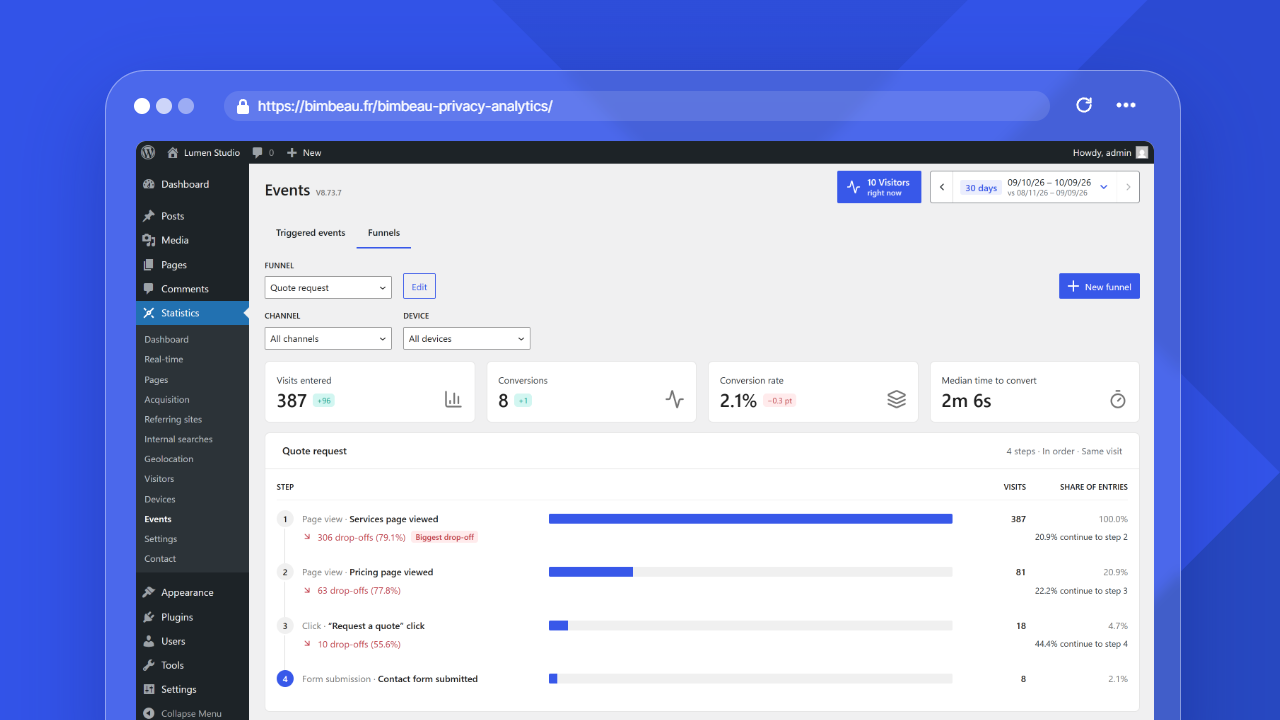
A conversion funnel follows the visits that complete several of your events in a given order, for example a view of the home page, a view of the pricing page, a click on “Request a quote”, then a view of the thank-you page. It shows how many visits reach each step, where visitors drop off, and which acquisition channels and devices convert best.
Good to know
Funnels are a BimBeau Privacy Analytics Pro feature. They are built from the events you configure, so create your events first. With WooCommerce, a ready-made purchase funnel needs no event configuration (see WooCommerce purchase funnel).
Where to find funnels
Open Statistics → Events, then the Funnels tab. The report has two tabs: Triggered events and Funnels. The Funnels tab can also be opened directly with the bbpa_tab=funnels query argument of the Events screen, and from the Open in Funnels link of the Purchase journey card in the Acquisition report.
Users with access to the Events report can read funnels. Only users who can open the Settings screen can create, edit and delete them.
How visits are counted
- The steps are configured events of type click or page view (and older form submission events). Webhook events are not linked to a visit and cannot be steps.
- A visit enters the funnel when it triggers the first step. It then reaches each next step when it triggers that step's event afterwards, during the same visit.
- Steps must be completed in order. Other pages and events can occur between two steps; an event triggered out of order or repeated does not move the visit forward.
- Only event occurrences recorded with a visit identifier by the tracker are counted. As events need the advanced tracker, funnels only include visits that allowed advanced tracking (after consent when a consent tool gates it).
- The channel and the device of a visit are those of its first step.
The funnel card header summarizes these rules: the number of steps, In order and Same visit.
Good to know
Funnels read the event occurrences kept by the data retention settings. Occurrences recorded before the version that introduced funnels are included when their visit identifier was stored with them.
Creating a funnel
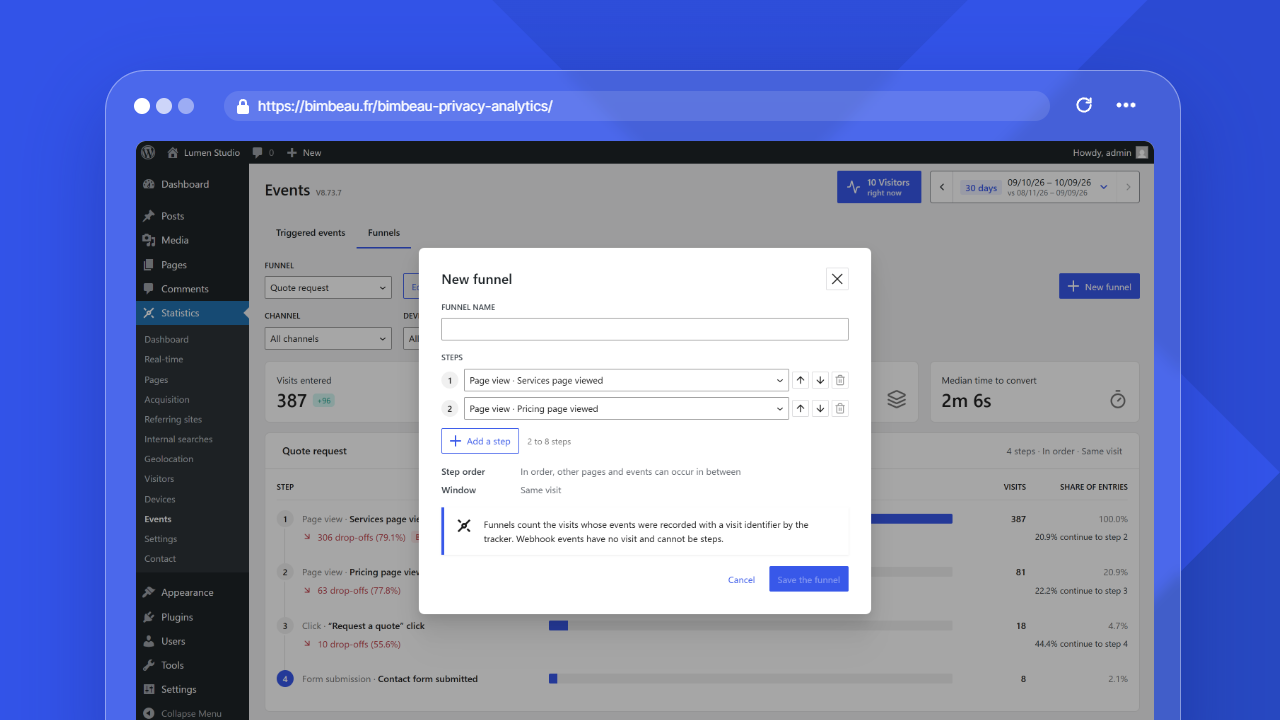
- In the Funnels tab, choose New funnel.
- Enter a Funnel name (up to 100 characters).
- Under Steps, choose an event for each step (Step 1, Step 2…). Each option shows the trigger type and the event name, for example “Page view · Pricing page”. The first two events are preselected.
- Use Add a step to add steps, and the arrows to move a step up or down or to remove it.
- Choose Save the funnel.
Rules:
| Rule | Value |
|---|---|
| Number of steps | 2 to 8 |
| Events | Each step must be a different configured event |
| Step order | In order: other pages and events can occur between two steps |
| Window | Same visit |
| Number of funnels | Up to 20 per site |
To change a funnel, select it in the Funnel list and choose Edit. The same window offers Delete the funnel; deleting a funnel keeps its events and their data.
If you delete an event that a funnel uses, the funnel keeps the step so that its history stays readable; the step is then shown with the event identifier instead of its name.
When fewer than two events are configured, the Funnels tab invites you to configure at least two events in Settings → Events before creating a funnel.
Reading a funnel
Choose a funnel in the Funnel list. The report uses the period selected at the top of the screen.
| Element | What it means |
|---|---|
| Visits entered | Visits that triggered the first step, with the difference against the previous period of the same length |
| Conversions | Visits that reached the last step, with the difference against the previous period |
| Conversion rate | Conversions divided by visits entered, with the change in points against the previous period of the same length (the period that ends the day before the selected one) |
| Median time to convert | Median time between the first and the last step of the converted visits |
| Revenue | Only for a funnel whose last step is Order placed (WooCommerce): the revenue of the converted visits, in the store currency |
| Steps | One row per step: a bar, the visits that reached it and their Share of entries. Under it: the drop-offs before the next step, in number and percentage (or No drop-off), and the share of the visits that continue to the next step. The step that loses the largest share of its visits is marked Biggest drop-off; the last step, the goal, has its number in blue |
| By channel | Entries, conversions and conversion rate (with a bar) per acquisition channel of the first step, plus revenue for a purchase funnel |
| By device | The same columns per device of the first step, next to By channel when the screen is wide enough |
When fewer than 30 visits entered the funnel in the period, a Small sample message reminds you that rates change a lot from one visit to the next: choose a longer period for a more reliable reading.
The By channel and By device lists use the WordPress list component (DataViews): click a column header to sort it, and use View options for the density, the items per page and the visible columns.
Filters
The Channel filter (All channels by default) and the Device filter (All devices by default) limit the funnel to the visits whose first step came from that channel or device. The filters also apply to the previous period used for the conversion rate comparison. Their choices list every channel and device seen in the period. Reset filters shows as soon as a filter is active and goes back to All channels and All devices.
Long periods
A funnel reads up to 200,000 event occurrences per period. When a period has more, the report warns that only the first occurrences are counted: choose a shorter period.
When no visit completed the first step in the period, the report says so instead of showing the steps.
WooCommerce purchase funnel
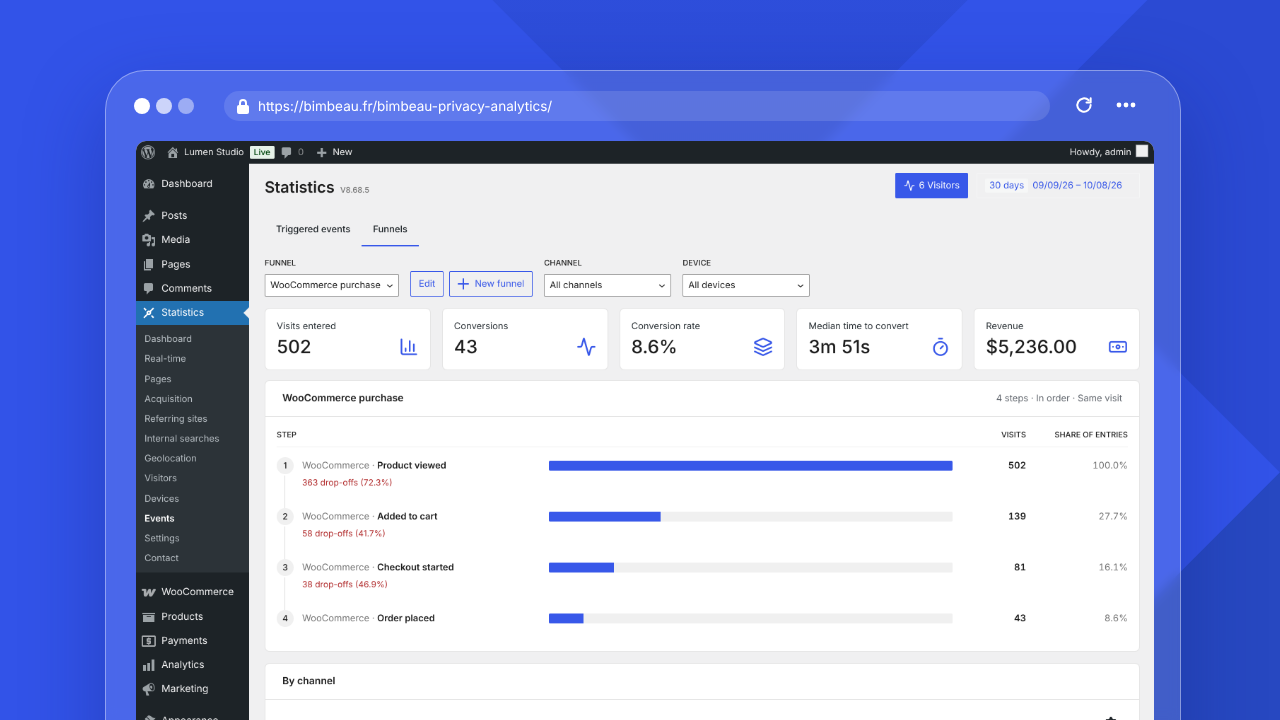
With WooCommerce active, the Funnels tab offers a ready-made WooCommerce purchase funnel: Add the WooCommerce purchase funnel creates it in one click. The button disappears once the funnel exists. Its four steps are built in and need no event configuration:
| Step | Recorded when |
|---|---|
| Product viewed | A product page is displayed |
| Added to cart | A product is added to the cart, from a product page, a shop page or a cart block |
| Checkout started | The checkout page is displayed |
| Order placed | The order confirmation page is displayed (recorded once per order) |
These steps can also be used in your own funnels, mixed with your events. Any funnel whose last step is Order placed shows the Revenue KPI and a Revenue column in By channel and By device.
The revenue of a step is the order total minus the refunds known when the order confirmation was recorded, in the store currency. Later refunds are not deducted from funnel revenue; the WooCommerce columns of the Acquisition report, which read the orders directly, do take them into account.
Like the attribution of orders to channels, these steps are only recorded once the advanced tracker runs, so after consent when a consent tool gates it. The Order placed step is recorded when the confirmation page reports the visit, within two days of the order. The order number is not stored with the steps.
The Acquisition report shows the same four steps in its Purchase journey card, marked Ready-made, even before the funnel is added here.
Export
Funnels have no export. To analyse the underlying data, export the triggered events list of the Events report (see Exports).
Troubleshooting
| Problem | What to check |
|---|---|
| New funnel is missing | Only users who can open the Settings screen can create funnels |
| An event is missing from the step list | Webhook events cannot be steps; check that the event is saved in Settings → Events |
| The funnel shows no visits | Check that the first step is triggered on the site, that advanced tracking is enabled and that visitors consented when a consent tool is used |
| Fewer conversions than expected | Steps must happen in order during the same visit; a step completed in a later visit is not counted |
| No revenue | Revenue is shown only when the last step is Order placed and WooCommerce is active |
Next step
Configure the events used as steps in Events, and compare channels in the Acquisition report.