404 errors
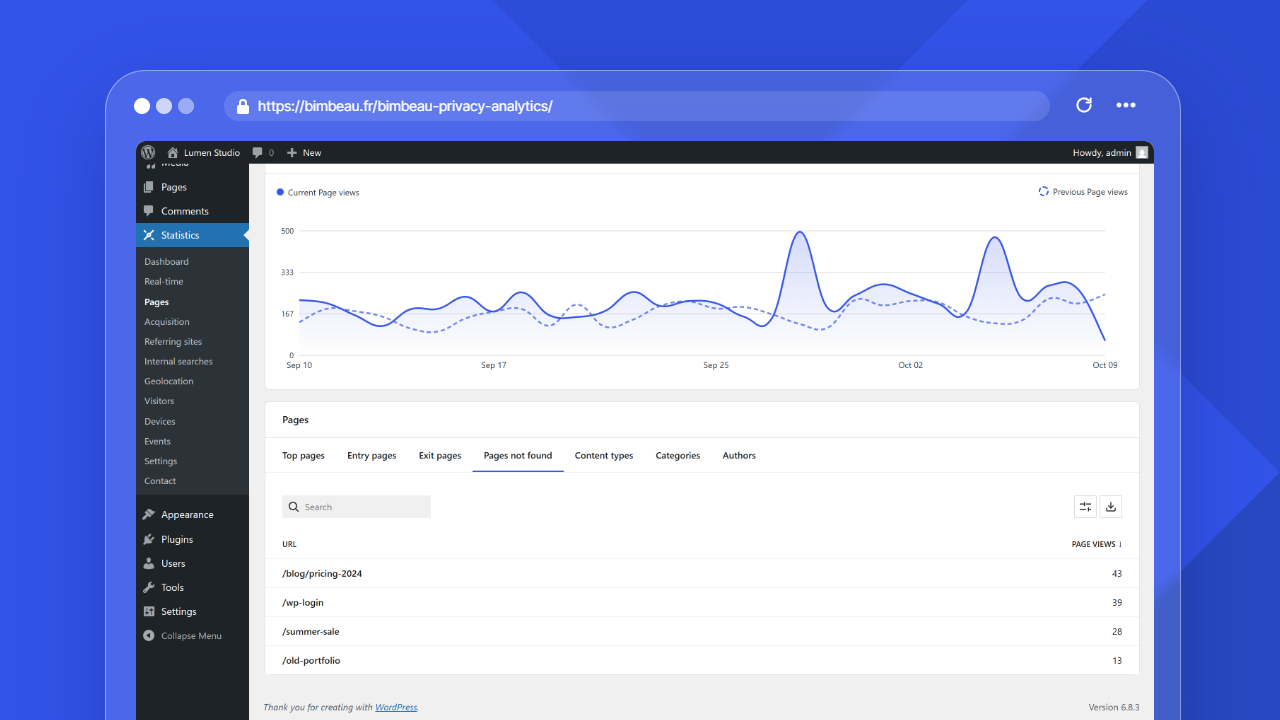
404 activity helps you identify missing pages, broken links, outdated URLs, and traffic landing on pages that no longer exist.
Use this view to improve user experience, protect important traffic, and decide which URLs should be fixed, redirected, or recreated.
Good to know
A 404 error happens when a visitor or bot requests a URL that your WordPress site cannot find.
Open 404 activity
In your WordPress admin area, go to Statistics → Pages, then open the Pages not found view.
The Dashboard does not show missing pages: open the Pages report to review them.
What this report helps you understand
Use 404 activity to answer questions such as:
- Which missing URLs are visitors trying to access?
- Are old pages still receiving traffic?
- Are external websites linking to outdated URLs?
- Are internal links broken?
- Should a missing URL be redirected to a current page?
- Are bots generating unusual 404 activity?
Main columns
Pages not found is a view inside the Pages report. The current table shows these columns.
| Column | What it means |
|---|---|
| Url | The missing page path requested by the visitor or bot |
| Page views | The number of tracked requests for that missing path during the selected period |
How to interpret 404 errors
Not every 404 requires action. Focus first on repeated, meaningful, or business-critical URLs.
Common cases:
| Situation | Recommended action |
|---|---|
| An old page still receives visits | Redirect it to the closest current page |
| A product or service URL changed | Add a redirect from the old URL to the new one |
| An internal link is broken | Update the link in your content, menu, or template |
| An external website links to an outdated URL | Add a redirect and consider contacting the website owner |
| A strange URL is hit once by a bot | Usually safe to ignore unless it repeats or looks suspicious |
Important
Large numbers of unusual 404 requests can come from bots, scanners, or outdated external links. Review patterns before assuming real visitors are affected.
Prioritize important 404s
Use this simple workflow to decide what to fix first.
-
Sort by volume
Start with the URLs that receive the most 404 hits.
-
Check whether the URL used to exist
If the URL was previously a real page, product, post, or landing page, it may deserve a redirect.
-
Look for a relevant destination
Redirect visitors to the most relevant current page, not always to the homepage.
-
Fix internal links
If the 404 comes from your own website, update the source link so future visitors no longer hit the missing page.
-
Monitor again
After fixing or redirecting URLs, check the report later to confirm that the issue decreases.
Date range
Use the date range controls in the Pages report to focus on recent or historical 404 activity.
Short ranges are useful after a migration, redesign, permalink change, or content cleanup. Longer ranges help you identify persistent broken URLs.
404s after a redesign or migration
After changing your site structure, domain, slugs, categories, or permalink format, the Pages not found view can reveal URLs that still receive traffic.
Pay special attention to:
- old service pages;
- old blog posts;
- deleted landing pages;
- renamed product pages;
- URLs shared in newsletters or social posts;
- external backlinks from partner websites.
Free and Pro behavior
BimBeau Privacy Analytics Free includes 404 activity in the Pages not found view for aggregate website analytics and maintenance.
BimBeau Privacy Analytics Pro adds export workflows for supported reports while keeping the same core Pages not found reporting foundation.
Exporting 404 data
Exports are a Pro feature.
When export actions are available, you can download Pages not found data for technical audits, migration follow-up, SEO review, or internal reporting.
Important
Exported analytics files may contain requested URLs and referrer information. Store and share exports according to your privacy policy and internal data handling rules.
Empty or unexpected results
If the Pages not found view is empty or does not show the URLs you expect, check the following:
-
Check the selected date range
The 404 may have happened outside the current reporting period.
-
Confirm the URL really returns 404
Open the URL in a browser and confirm that WordPress displays a not found page.
-
Generate a test 404
Open a clearly invalid public URL on your website, then check Pages → Pages not found after a short moment.
-
Review tracking settings
Make sure your current role, privacy settings, consent setup, or exclusion rules are not preventing activity from being recorded.
Next step
Continue with Devices to understand which device categories visitors use on your website.