Page details
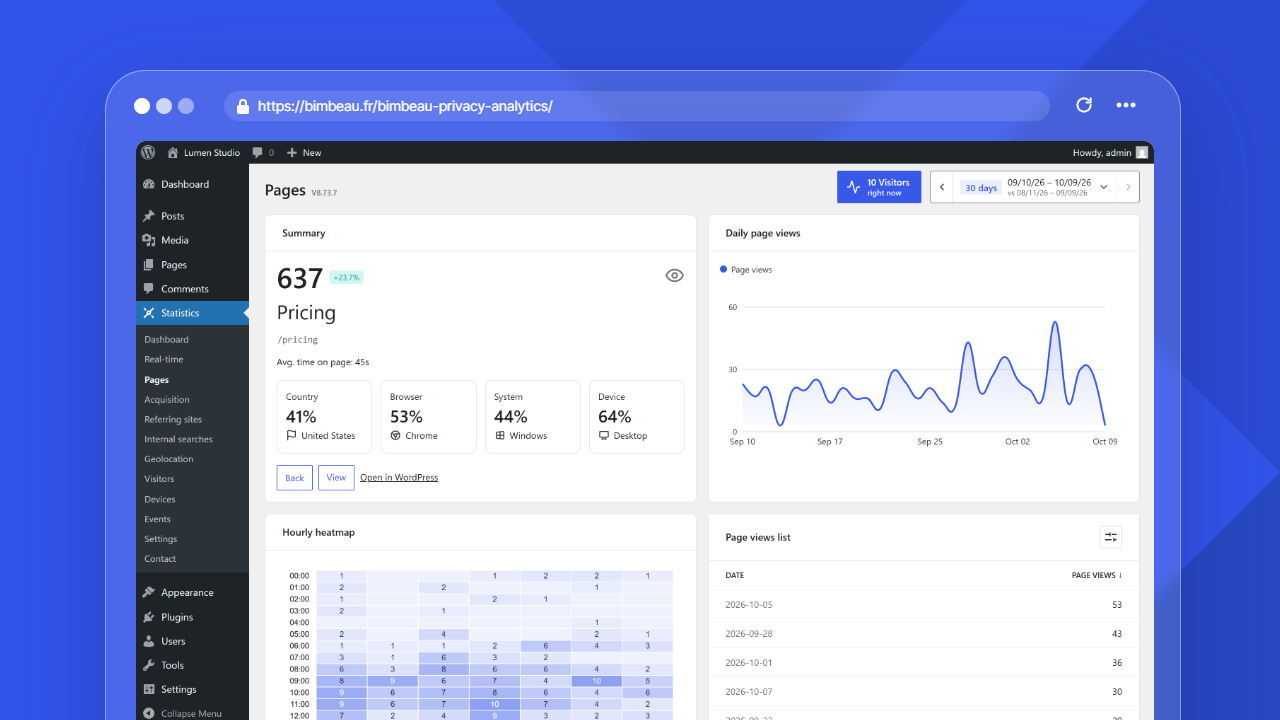
Page Details is a BimBeau Privacy Analytics Pro feature that helps you analyze an individual page more deeply than the main Pages report.
Use Page Details when you want to understand how a specific page performs over time, where its visitors come from, and which audience or device patterns are associated with that page.
Good to know
Page Details is a Pro feature. If it is not visible, check that your Pro license is active and that your WordPress user has access to BimBeau Privacy Analytics Pro features.
When to use Page Details
Use Page Details when a page deserves closer analysis.
Common examples:
- a homepage;
- a landing page;
- a pricing page;
- a service page;
- a product page;
- an important article;
- a campaign page;
- a page that suddenly gained or lost traffic;
- a missing page listed in Pages not found that needs closer review.
How Page Details differs from Pages
Pages helps you compare many URLs across views such as Top pages, Entry pages, Exit pages, and Pages not found.
Page Details focuses on one URL and shows deeper page-level trends, traffic sources, visitors, devices, and locations where available.
Start with Pages to identify important URLs, then open Page Details when you want to investigate one page more closely.
What Page Details helps you understand
Use Page Details to answer questions such as:
- How did this page perform during the selected period?
- Did traffic increase after a content update or campaign?
- Which days or hours generated the most activity?
- Which referring sites sent visitors to this page?
- Which visitors, browsers, operating systems, devices, and screen resolutions are associated with this page?
- Which countries or cities appear in the page's audience data?
- Does this page deserve optimization, promotion, a redirect, or a content refresh?
How to open Page Details
-
Open Pages
Go to Statistics → Pages.
-
Select the date range
Choose the period you want to analyze.
-
Choose a Pages view
Open Top pages, Entry pages, Exit pages, or Pages not found, depending on the URL you want to investigate.
-
Find the page
Use search, sorting, and pagination to find the URL or title you want to inspect.
-
Open the Page Details action
Use the available Page Details action, link, or row interaction for that page.
Summary
The Summary card gives a quick performance overview for the selected page.
Depending on the selected view and available data, it can include:
- the total page-level metric for the selected period;
- a comparison badge against the previous period when available;
- the page title, with its address under it, or the address when the page has no title;
- average time on page when advanced timing data is available;
- top country, browser, operating system, and device indicators;
- actions to go back, view the public page, or open the WordPress edit screen when available.
Good to know
Average time on page measures active foreground engagement. It is not the same as the total time a browser tab remained open.
Daily page views
The Daily page views chart shows the page views recorded during the selected period as a single series.
Use it to spot:
- traffic spikes after a campaign, publication, or external mention;
- traffic declines after a redesign, content change, or promotion ending;
- recurring weekday patterns;
For a single-day selection, the chart can use hourly buckets instead of daily buckets.
Hourly heatmap
The Hourly heatmap shows page activity by day and hour when the data is available.
Use it to understand:
- the hours when visitors are most active;
- whether traffic arrives in short bursts or steady patterns;
- whether campaigns drive traffic at specific times;
- whether weekday and weekend behavior differs.
Good to know
Hourly patterns are easier to interpret on pages with enough traffic. Low-traffic pages may not show meaningful hourly trends.
Page views list
The Page views list provides the underlying page-level activity rows for the selected period.
Use the list to:
- review activity by date or hour, depending on the selected range;
- sort by the page metric or the date from the column headers or View options;
- choose the density and the number of items per page (5 to 100) in View options;
- move through results with pagination.
The list uses the WordPress list component (DataViews), like the other lists of the plugin.
Referring sites
The Referring sites section shows domains or source categories that sent traffic to the selected page when referrer data is available.
Use it to identify search engines, social platforms, partner websites, campaign sources, direct traffic, and external mentions associated with the page.
Good to know
Referrer data depends on what browsers, websites, search engines, and privacy tools allow to be shared. Some visits may not include a visible referring site.
Visitors
The Visitors section lists visitor-level rows associated with the selected page when visitor details are available.
Depending on your settings and available data, rows can include details such as:
- visitor ID hash;
- country and city;
- first connection and last activity;
- active time;
- page views;
- referrer;
- browser and browser version;
- operating system;
- device;
- screen resolution.
Visitor details are designed for analytics review, not for identifying a person.
Audience and device breakdowns
Page Details can show audience cards for the selected page, including:
| Section | What it helps you understand |
|---|---|
| Browser usage | Which browsers are associated with page views for this page |
| Most used operating systems | Which operating systems appear in the page's visitor data |
| Device usage breakdown | Whether the page is viewed from desktop, smartphone, tablet, or other device categories |
| Resolution | Which screen resolutions appear in the page's visitor data |
Use these sections to identify usability or design patterns. For example, a page with high mobile traffic may deserve extra mobile layout testing.
As in the Devices report, these cards and the Browser, System and Device indicators of the summary are calculated from every visitor of the page in the selected range; the card summary gives the number of page views they are based on.
Countries and cities
Page Details can include Top countries and Top cities tables for the selected page when geolocation data is available.
Use these sections to understand geographic patterns, campaign reach, and regional audience differences.
Important
Location data can be incomplete or approximate. It depends on IP geolocation availability, your geolocation settings, privacy rules, and whether the visitor data can be enriched.
Exporting Page Details data
Exports are a Pro feature.
If export actions are available for Page Details or related reports, you can download page-level data for external analysis or reporting.
Important
Exported analytics files may contain page-level activity data. Store and share exports according to your privacy policy and internal data handling rules.
Data limits and privacy behavior
Some Page Details sections depend on consent, tracking settings, and the amount of traffic recorded for the selected page.
Keep these limits in mind:
- Advanced tracking may be required for timing, device, browser, operating system, resolution, and enriched visitor details.
- If your website requires consent for advanced analytics, your CMP must control the relevant BimBeau Privacy Analytics tracking behavior.
- If advanced tracking is disabled, blocked, or unavailable, some sections may be limited, empty, or less detailed.
- Referring sites can be missing when browsers, apps, privacy tools, or referring websites restrict referrer information.
- Geolocation can be unavailable or approximate depending on your geolocation setup and the available visitor data.
- Low-traffic pages may not provide meaningful hourly patterns, comparison badges, or audience breakdowns.
- Very broad date ranges can require pagination or exports to review all rows comfortably.
Important
BimBeau Privacy Analytics is not a consent management platform. If consent is required for advanced analytics on your website, make sure your CMP controls the relevant tracking behavior.
Troubleshooting Page Details
If Page Details is unavailable or incomplete, check the following:
-
Confirm Pro is active
Page Details is a Pro feature. Make sure your Pro license or account connection is active.
-
Check user permissions
Make sure your WordPress user can access BimBeau Privacy Analytics reports and Pro features.
-
Check the selected page
The page must have recorded activity during the selected date range.
-
Review tracking settings
Some details may require advanced tracking or timing data.
-
Review consent behavior
If advanced tracking is blocked by your CMP, enriched metrics may be unavailable.
Next step
Continue with Events to learn how BimBeau Privacy Analytics Pro can track specific actions and interactions.