Exports
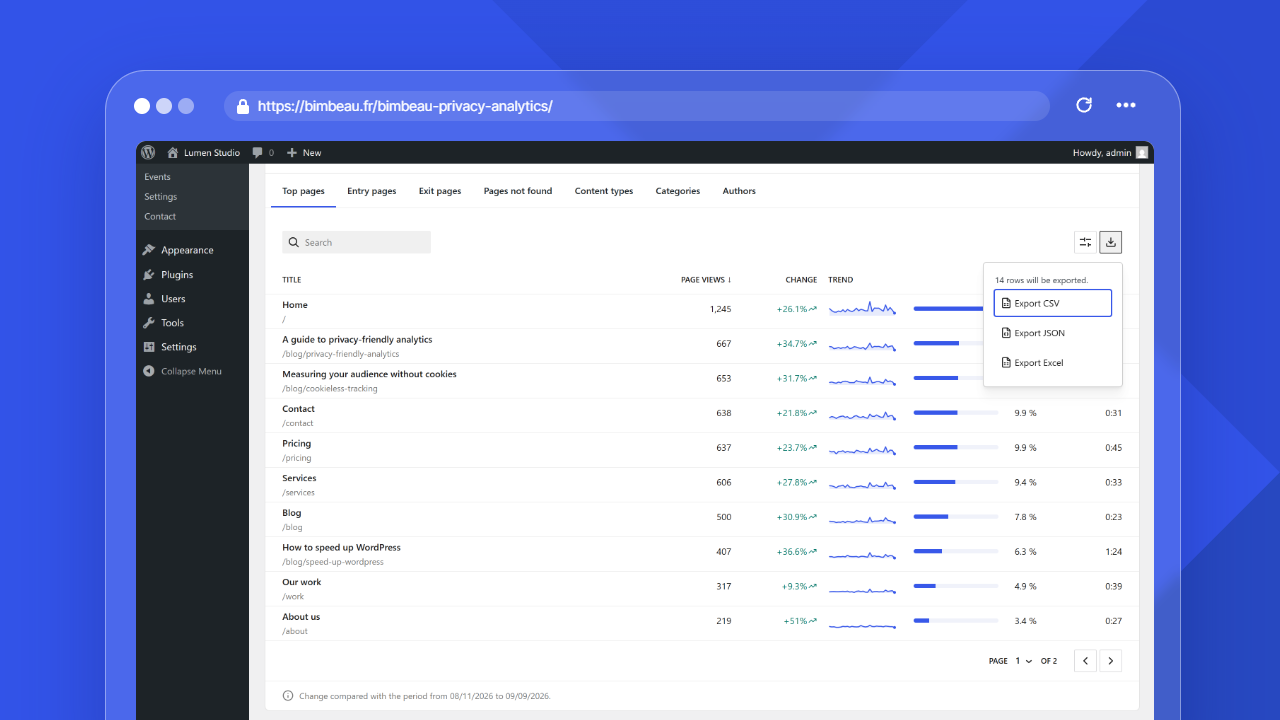
Exports are a BimBeau Privacy Analytics Pro feature that let you download supported analytics reports for use outside WordPress.
Use exports when you need to share reports, archive a period, analyze data in a spreadsheet, or keep a copy before changing retention settings.
Important
Exported files are outside BimBeau Privacy Analytics retention controls. Once downloaded, you are responsible for storing, sharing, protecting, and deleting them according to your privacy policy and internal data handling rules.
Where exports are available
Export actions appear in the header of supported report cards, only when Pro is active. The export control is an icon-only button (download icon) named Export report. It opens a menu that shows the number of rows included, then the Export CSV, Export JSON, and Export Excel actions. Clicking a format starts the export without an additional generating notice. In the Free version, no export control is displayed.
The following reports can be exported:
| Screen | Exportable reports |
|---|---|
| Dashboard | Pages, Top referrers |
| Pages | Top pages, Top 404s, Entry pages (approx.), Exit pages |
| Referring sites | Referring sites |
| Acquisition | Acquisition channels |
| Internal searches | Search terms |
| Geolocation | Top countries, Top cities |
| Visitors | Visitor list |
| Events | Triggered events |
Other screens, such as Devices and funnels, do not offer exports.
Good to know
If an export button is not visible on a report, that report does not support exports, Pro is not active, or your user account does not have the required permissions.
Common export use cases
Exports are useful when you need to:
- send analytics data to a client or stakeholder;
- prepare a monthly or quarterly report;
- archive traffic data before cleanup;
- analyze data in a spreadsheet;
- combine BimBeau Privacy Analytics data with another reporting tool;
- keep evidence of campaign performance;
- review SEO, UX, or content performance outside WordPress.
Export formats
BimBeau Privacy Analytics Pro supports CSV, JSON, and Excel export formats for supported reports. Excel export depends on the PHP Zip extension on the server.
CSV uses the file spreadsheet icon in the export menu. It is useful for spreadsheets, reporting workflows, and data analysis tools. It is usually the best format when you want to sort, filter, calculate, or combine analytics data.
JSON uses the file braces icon in the export menu. It is useful for technical workflows, integrations, structured archives, or developers who want to process analytics data programmatically.
Excel exports create an .xlsx workbook with one sheet named Export. It is useful when you want a spreadsheet file that opens directly in Excel, Numbers, or LibreOffice. If the PHP Zip extension is not installed on the server, the Export Excel action remains visible but disabled with an explanatory tooltip.
How to export a report
-
Open a supported report
Go to the BimBeau Privacy Analytics report you want to export, such as Pages, Referring sites, Visitors, Internal searches, or Geolocation.
-
Select the date range
Choose the reporting period you want to include in the export.
-
Apply filters if available
If the report supports filters, configure them before exporting so the downloaded file matches the view you need. Exports include rows for the selected period and active filters, not only the rows visible on the current table page.
-
Click the export action
Use the export action with the download icon in the report card header.
-
Choose the format
Review the row count shown in the export menu, then select the available format: CSV, JSON, or Excel, depending on how you want to use the file.
-
Download and store the file securely
Save the exported file in an appropriate location and handle it according to your data handling rules.
Choosing the right date range
The selected date range affects what the export contains.
| Date range | Best for |
|---|---|
| Today or recent days | Quick checks, launch monitoring, troubleshooting |
| Last 7 or 30 days | Short-term reporting and campaign review |
| Current month or quarter | Stakeholder reporting |
| Custom historical range | Audits, archives, comparisons, or migration follow-up |
Good to know
If you plan to reduce data retention or uninstall the plugin, export any reports you need before deleting analytics data.
Privacy and data handling
Exports can contain analytics data from your website. Depending on the report, this may include URLs, referrers, search terms, geographic data, visitor-level rows, or event-related information.
Before sharing an export, consider:
- whether the recipient needs the full file;
- whether the file should be minimized or filtered;
- whether it contains user-entered search terms;
- whether it contains visitor-level activity;
- where the file will be stored;
- how long the exported file should be kept;
- who is allowed to access it.
Be careful
Deleting data from BimBeau Privacy Analytics does not automatically delete files that were previously exported. Manage exported files separately.
CSV exports
CSV exports are usually best for non-technical reporting workflows.
You can open CSV files in spreadsheet tools to:
- sort rows;
- filter by page, source, country, or device;
- create charts;
- calculate totals or percentages;
- combine data with other reports;
- prepare client-facing summaries.
Good to know
When opening CSV files in spreadsheet software, check that dates, URLs, and special characters are displayed correctly before sharing the file.
Formula protection
Some exported values, such as search terms or page paths, come from visitors. To prevent spreadsheet software from running them as formulas, a text cell that starts with =, +, -, or @ (or with a tab or line break) is saved with a leading apostrophe, for example '=1+1. Excel exports apply the same protection. Numbers such as page views are not changed.
Excel exports
Excel exports are useful when you need a spreadsheet workbook that opens directly in Excel, Numbers, or LibreOffice. The workbook contains the export policy columns only, with one header row and one row per exported report item. Excel export requires the PHP Zip extension on the server.
JSON exports
JSON exports are useful when you need structured data.
You may prefer JSON when:
- another system will process the export;
- you want to preserve structured fields;
- a developer or technical user will analyze the file;
- you are archiving report data for future automated workflows.
A JSON export contains the exported rows (items) with the same columns as the CSV file, plus the report date range and pagination details. Other internal report data is not included.
Large exports
Large reports may take longer to prepare than small reports.
An export requests the full set of rows matching the selected date range and active report filters. The export menu displays how many rows the file includes before the download starts. The requested row count is capped by the configured export maximum. If the matching result set is larger than the maximum, the export menu indicates that only the first rows up to that maximum are included in the file.
If an export covers many rows or a long date range, BimBeau Privacy Analytics may need additional time to generate the file. Keep the selected date range focused when possible.
Above 500 rows by default, the export becomes an asynchronous job: BimBeau Privacy Analytics prepares the file in batches, then downloads it automatically when it is ready. An export cannot exceed 10,000 rows by default.
Large exports are prepared in the background and stored temporarily in a protected folder of your WordPress uploads directory. The file can only be downloaded from the BimBeau Privacy Analytics interface by the user who started the export, and it is deleted automatically after 24 hours by default.
While an export is prepared, the export button shows that it is busy; nothing is added next to it, so the card header does not move. When the file is handed to your browser, the button shows a check for a moment before its download icon comes back. Screen readers announce "Export in progress", with the rows written so far for a large export (for example "4,200 / 10,000 rows"), then "File ready". If the export fails, an error message explains what happened.
Good to know
For recurring reporting, smaller periodic exports are often easier to manage than one very large export.
Exporting before retention cleanup
If you plan to shorten your retention settings, run important exports first.
Recommended workflow:
-
Identify important reports
Decide which reports you need to keep before cleanup.
-
Select the historical date range
Choose the period that may no longer be available after retention cleanup.
-
Export the reports
Download the required reports in the format you need.
-
Store files securely
Move exported files to an approved storage location.
-
Update retention settings
After confirming that required exports are stored, adjust retention settings if needed.
Troubleshooting exports
If exports do not work as expected, check the following:
-
Confirm Pro is active
Exports are a Pro feature. Make sure your Pro license or account connection is active.
-
Check permissions
Make sure your WordPress user can access the report and perform export actions.
-
Check the report
Not every report or table may support exports. Try exporting from a supported report such as Pages or Referring sites.
-
Reduce the date range
If the export is too large or slow, try a shorter date range.
-
Check browser downloads
Make sure your browser did not block the download or save the file to an unexpected location.
Next step
Continue with Page details to learn how Pro users can analyze individual pages more deeply.