Pages
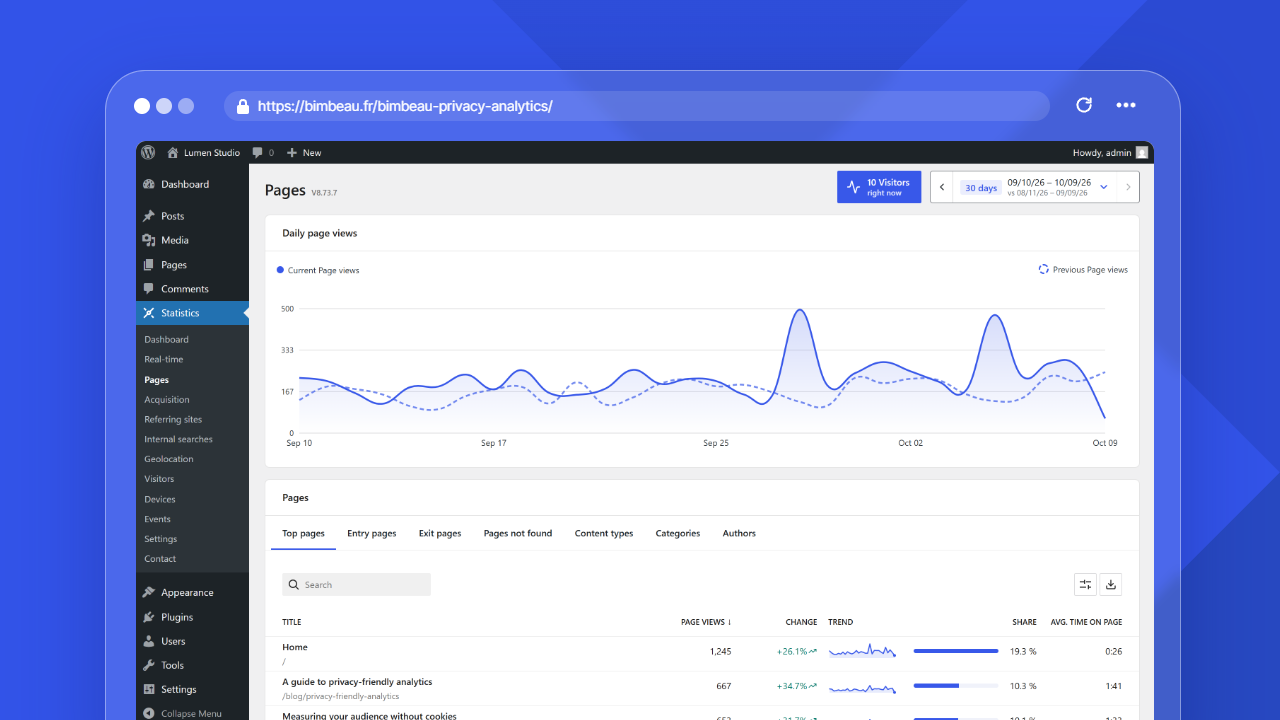
The Pages report shows how visitors interact with individual URLs on your WordPress website.
Use this report to identify popular content, review entry and exit behavior, find missing pages, and decide which pages deserve optimization, promotion, redirects, or content updates.
Good to know
The Pages report is available in BimBeau Privacy Analytics Free and BimBeau Privacy Analytics Pro. BimBeau Privacy Analytics Pro provides Page Details and export workflows for supported page reports when licensed features are active.
Open the Pages report
In your WordPress admin area, go to Statistics → Pages.
The Pages card of the Dashboard also lists your most viewed pages.
What this report helps you understand
Use Pages to answer questions such as:
- Which pages are viewed the most?
- Which pages are used as entry points?
- Which pages are often the last page in a visit?
- Which missing URLs receive traffic?
- Which pages have meaningful engagement time, when available?
- Which pages should be improved, redirected, updated, or promoted?
Daily page views chart
The top of the report shows the Daily page views chart: the page views of each day of the selected period, with the previous period drawn as a lighter overlay for comparison. When the selected period is a single day, the chart shows hourly values. Hover or focus a point to see the date and the current and previous values.
Report views
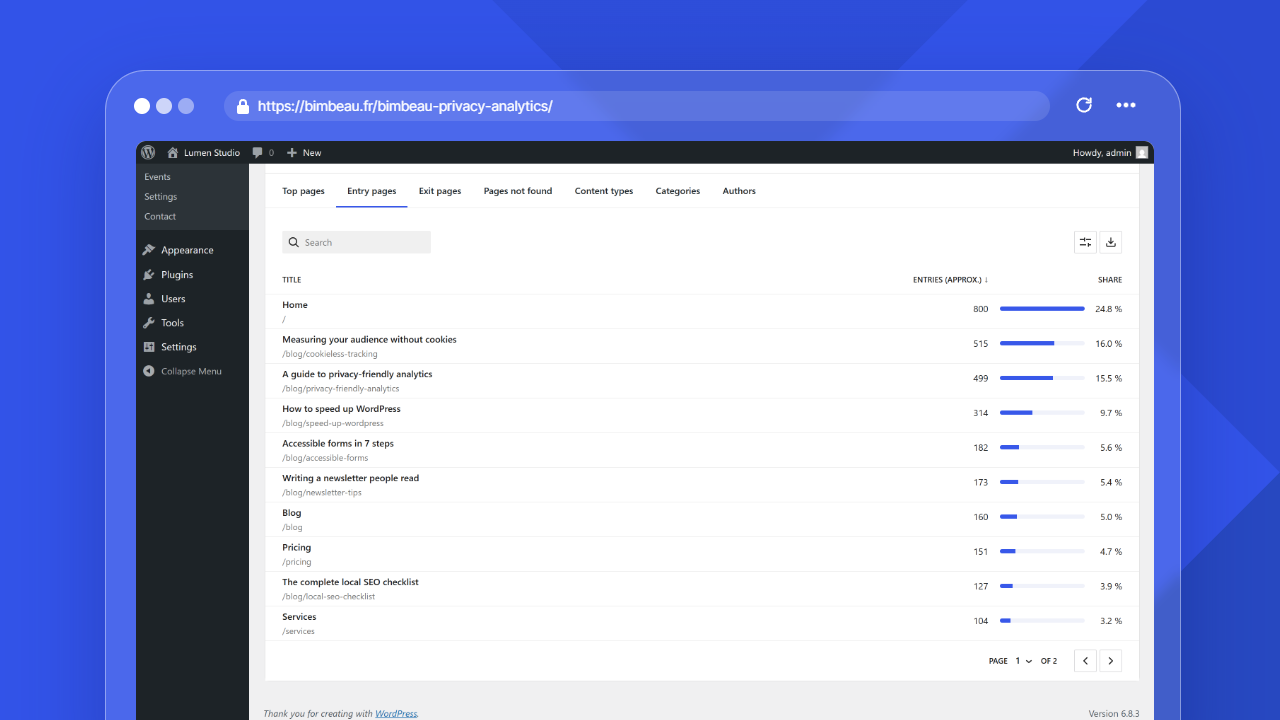
Under the chart, the Pages card groups several page-focused views in tabs: Top pages, Entry pages, Exit pages, Pages not found, Content types, Categories, and Authors.
Top pages lists the pages that receive the most page views during the selected period. Use it to identify high-traffic content, evergreen pages, campaign landing pages, and pages with unexpected activity.
Entry pages shows pages where visits begin, when available. Use it to understand which pages act as landing pages from search, social, campaigns, direct visits, or external links.
Exit pages shows pages where visits end, when available. Use it to identify pages that may complete a visitor journey, pages that naturally end a session, or pages that deserve conversion or navigation review.
Pages not found lists missing URLs that returned a 404 response. Use it to find broken links, outdated URLs, and paths that may need redirects or content restoration.
Content types adds up the page views of your published content by WordPress post type, such as Posts, Pages, or the custom post types of your theme and plugins. Use it to see which kind of content attracts your visitors.
Categories adds up the page views of your published posts by category. Use it to compare the topics of your blog or news section.
Authors adds up the page views of your published content by author. Use it to see how the work of each writer is read.
Good to know
Entry and exit counts may be approximate because they depend on the visit signals BimBeau Privacy Analytics can record for the selected period.
Main columns
The Pages report uses separate views, so the visible columns depend on the selected tab.
| View | Visible columns and controls |
|---|---|
| Top pages | URL and/or Title depending on the visible Columns, Page views, Change against the previous period, Trend (daily page views on a scale shared by the rows) when available, Share, and optional Avg. time on page when advanced timing is enabled |
| Entry pages | URL and/or Title, Entries (approx.) and Share |
| Exit pages | URL and/or Title, and Exits (approx.) |
| Pages not found | Url and Page views for missing-page requests |
| Content types | Content type, Page views, Change, Trend, Share, Content viewed, and Avg. time on page when advanced timing is enabled |
| Categories | Category, Page views, Change, Trend, Share, Content viewed, and Avg. time on page when advanced timing is enabled |
| Authors | Author, Page views, Change, Trend, Share, Content viewed, and Avg. time on page when advanced timing is enabled |
The Change column shows New for a row that had no page view in the previous period, and a compact value above 1,000 % (for example +2.5k%), like the dashboard key figures. Hover a change to see the previous value and the difference. The period compared is named under the list. The Share bar of the largest row fills its track, and the average time on page reads as minutes and seconds (1:06).
The Pages report includes the Top pages view, plus Entry pages, Exit pages, Pages not found, Content types, Categories, and Authors. Use the tab names in the report to switch between those views.
Page titles and URLs use the available width of the first table column within the centered report area. Long values cannot widen the report or page and remain complete for searching, sorting, exporting, copying, and assistive technology; the visible label uses an ellipsis only when the current viewport cannot display it in full. Hover or focus the label to access its complete value.
Good to know
Average time on page is based on active engagement signals and appears only when advanced timing data is enabled and available. It is not the same as the total time a browser tab stayed open.
Content types, categories, and authors
These three views group the page views of the selected period by the WordPress content behind each address. BimBeau Privacy Analytics looks up the content when you open the report: no setting is needed, and the views also cover the period before this feature was installed.
- Only published content is counted. The static front page counts as a page.
- In Categories, a post filed in several categories counts in each of them, so the rows can add up to more page views than the period had. Pages and other content without a category are not listed in this view.
- Share shows, with a bar and a percentage, the part of the content page views of the period (every page view except missing pages) that goes to the row. Because a post can count in several categories, the shares of the Categories view can add up to more than 100%.
- In Top pages and Entry pages, Share is the part of all the page views (or entries) of the period that goes to the row, missing pages left out. It does not change when you search the list. Page views of addresses that are not listed in Top pages, such as archives, still count in the total, so the shares of that view add up to less than 100%.
- Content viewed is the number of different published posts or pages of the row that were viewed during the period. You can sort by this column.
- Avg. time on page is the average active time on the row's content, calculated like the Top pages average. It appears only when advanced timing is enabled.
- An Unresolved row, shown last and in a lighter color, groups the page views of addresses that do not match a published post or page, such as archives, search results, or the blog home page. Missing pages (404) are not included.
Good to know
On very large sites, only the most viewed addresses are looked up for each report (5,000 by default). The page views of the other addresses are counted in the Unresolved row.
Search
The lists of the Pages report use the WordPress list component (DataViews), the one of the Pages and Templates screens: the search field is at the top left, and, in Pro, the export button sits at the top right next to the View options button (cog icon), which holds the sorting, density, items per page and visible columns settings.
Use the Search field to narrow the table to matching URLs, paths, or page labels. In the Content types, Categories, and Authors views, it matches the row names.
Search is useful when you want to:
- find a specific article, page, or landing page;
- check whether an old URL still receives traffic;
- filter missing pages by a common path pattern;
- review a content section such as
/blog/,/services/, or/shop/.
Sorting
Click a column header (the label column or the main metric) and choose ascending or descending, or open View options and use Sort by and the order control. Sorting is computed on the server. Avg. time on page cannot be sorted.
URL and title
In Top pages, Entry pages and Exit pages, open View options → Columns to show the URL column, the Title column, or both. At least one of them stays visible. Your choice is remembered in this browser for your user account, and shared by these lists and the dashboard Pages card. Avg. time on page can also be hidden from Columns.
In every list, a column shown again from Columns comes back at its usual place. To change the order of the columns, open the menu of a column header and choose Move left or Move right.
Depending on the selected view, you can sort by the main metric, URL, or title. Sorting by volume is useful for prioritization, while sorting by URL or title is useful when reviewing a known section of the site.
Pagination and items per page
Use Items per page in View options to show 5, 10, 20, 50 or 100 rows on each page. When the results fill more than one page, the pagination at the bottom shows the item count, a page selector and the previous and next page arrows.
Pagination helps keep the report readable on high-traffic sites or after broad date ranges.
Exports
Exports are a Pro feature.
When export actions are available in BimBeau Privacy Analytics Pro, you can download report data for audits, content planning, SEO review, migration follow-up, or internal reporting. The Content types, Categories, and Authors views do not offer exports yet.
Important
Exported analytics files may contain website activity data, requested URLs, and referrer information. Store and share exports according to your privacy policy and internal data handling rules.
Page Details
Page Details is a Pro feature.
When Pro is active and Page Details is available, select or open a page from the Pages report to review deeper page-level information such as a summary, page-view trends, hourly activity, referring sites, visitors, devices, locations, and other audience breakdowns.
In BimBeau Privacy Analytics Free, Pages rows remain aggregate report rows. They do not expose Page Details links, row click handlers, or locked Page Details preview screens.
Interpreting page behavior
When reviewing Pages, look for patterns rather than isolated numbers.
For example:
- a high-traffic page with low engagement may need clearer content or calls to action;
- a frequently used entry page may deserve stronger introductory content or conversion paths;
- a common exit page may be normal for a contact, checkout, confirmation, or article page;
- a sudden spike may indicate a campaign, referral, search result, or external mention;
- a repeated missing URL may need a redirect, restored page, or corrected internal link.
Pages not found and 404s
A 404 error happens when a visitor or bot requests a URL that your WordPress site cannot find.
In BimBeau Privacy Analytics, 404 activity appears in the Pages not found view of the Pages report. Review repeated or important missing URLs first, especially after redesigns, permalink changes, migrations, deleted content, or campaign launches.
For more guidance, see 404 errors.
Free and Pro behavior
BimBeau Privacy Analytics Free includes the Pages report for aggregate page, entry page, exit page, and missing page monitoring when the required data is available.
BimBeau Privacy Analytics Pro provides additional page-level workflows, such as Page Details and report exports for supported page views.
Empty or unexpected results
If the Pages report is empty or does not show the page you expect, check the following:
-
Confirm that the page is public
BimBeau Privacy Analytics focuses on public frontend page activity. WordPress admin screens and technical requests are not intended to appear as normal content pages.
-
Check the selected date range
The page may have activity outside the selected reporting period.
-
Review filters and search
Clear the search field and confirm that the current view is the one you want to inspect.
-
Review tracking settings
Make sure role exclusions, privacy settings, consent setup, or path exclusions are not preventing activity from being recorded.
Next step
Continue with Referring sites to understand where visitors come from before reaching your website.