Geolocation
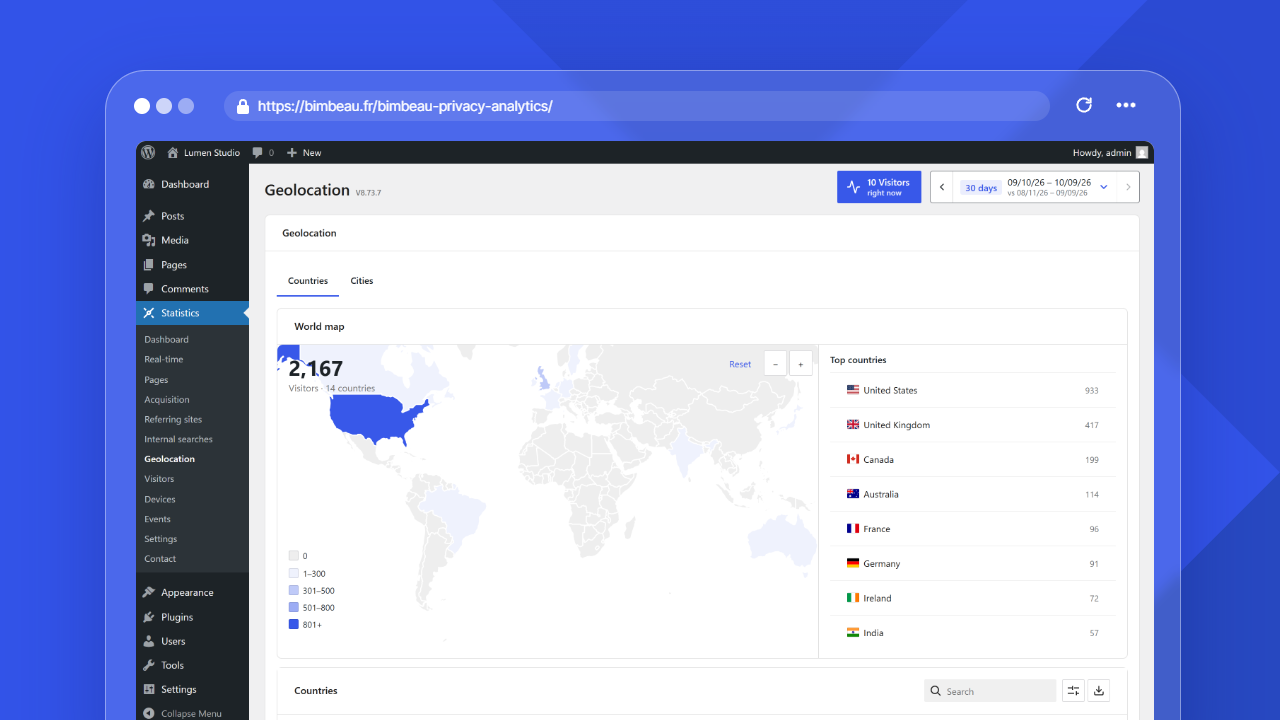
The Geolocation report helps you understand where visitors come from geographically.
Use this report to identify country-level traffic patterns, evaluate regional interest, and make better content, marketing, or localization decisions. BimBeau Privacy Analytics Pro can add city-level reporting when the required geolocation data is available.
Good to know
Geolocation reporting is based on available technical signals and configured geolocation data sources. It is useful for aggregate trends, but it should not be treated as a perfect location system.
Open the Geolocation report
In your WordPress admin area, go to Statistics → Geolocation.
Good to know
The Geolocation report depends on advanced statistics. When Enable advanced stats after consent is turned off in the Tracking and privacy settings, the Geolocation report is hidden from the Statistics menu.
The Countries view uses the same canonical map engine, rendering, legend, tooltips, zoom, pan, reset, and pointer or touch interactions in Free and Pro. Only the separate Cities tab, list, and aggregated city map are Pro-only.
What this report helps you understand
Use Geolocation to answer questions such as:
- Which countries generate the most visitors?
- Is my traffic local, national, or international?
- Are campaigns reaching the expected regions?
- Are there unexpected geographic spikes?
- Should I localize content, offers, or landing pages?
- With Pro, which cities appear in my audience when city data is available?
Countries and cities
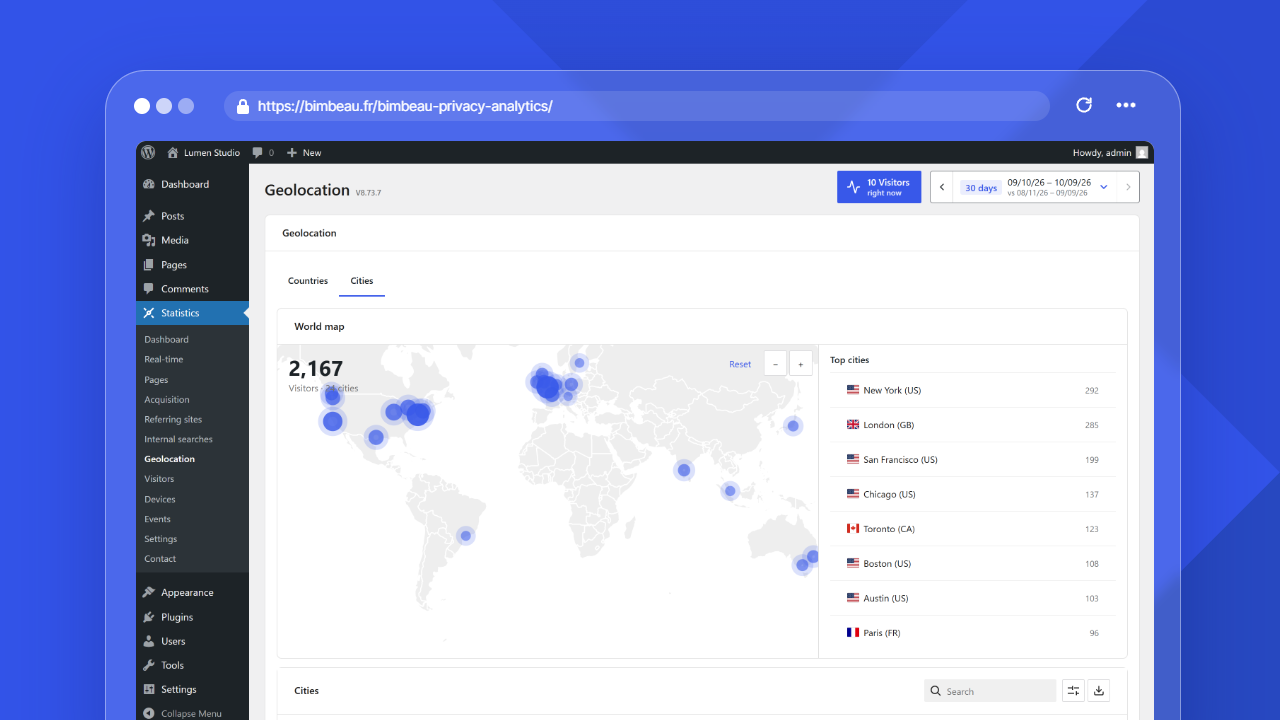
Geolocation data is usually easier to interpret at country level than at city level.
Country-level reporting helps you understand broad geographic distribution. It is useful for international traffic analysis, localization decisions, and high-level audience monitoring. This view is available in BimBeau Privacy Analytics Free and BimBeau Privacy Analytics Pro.
City-level reporting can provide more local insight when available. It may be less complete than country-level data depending on the geolocation source and available signals. The Cities tab, city list, and city map markers are BimBeau Privacy Analytics Pro features.
Main columns
The visible table columns depend on your edition and the selected view.
| View | Visible columns and map behavior |
|---|---|
| Countries | A country map with the visitors of the period and the number of countries in its top left corner, a compact Top countries ranking next to the map, and a Countries table with Country, Visitors and Share (share of the visitors of the period) below. Hovering a country darkens it and shows its visitors and share. The country column shows the flag and full country name. The visitor count represents distinct visitors per country for the selected period. Page views (hits) remain a separate metric used for map intensity, exports, and legacy fallbacks. |
| Cities | A Pro city map with a compact Top cities ranking next to it, and a Cities table with City / Country, Visitors and Share below. City markers are points with a soft halo; hovering one shows its visitors without enlarging it. The city visitor count represents unique human visitor rows for the selected period. City map markers appear when usable coordinates are available. |
When a row has no visitor count, for example for data recorded before visitor counts existed, the table shows a fallback value with a badge: Legacy visits in Countries (the number of visits), Hits in Cities (the number of page views).
Status notice
Above the Countries map, a notice explains why country data may be missing:
| Notice | What to do |
|---|---|
| Enable geolocation aggregation | Geolocation is disabled. Enable it in the Geolocation settings. |
| Enter the MaxMind credentials | Geolocation is enabled in MaxMind API mode, but the MaxMind Account ID or License Key is missing or invalid. Enter them in the Geolocation settings. |
| Traffic data is pending | Geolocation is configured, but the selected period has no visitor data yet. Wait for new visits or choose another period. |
No notice is shown when geolocation is configured and the period has data.
List controls
The Top countries list, and the Top cities list in Pro, use the WordPress list component (DataViews), the one of the Pages and Templates screens: the search field is at the top left (countries are found by their name in the admin language or their two-letter code, with or without accents), and, in Pro, the export button sits at the top right next to the View options button (cog icon), which sets Sort by, the order (ascending or descending), the density (compact by default; the choice applies to every list and is kept for your account in this browser), the Items per page (5, 10, 20, 50 or 100) and the visible Columns. Clicking a column header also sorts the list in ascending or descending order. Sorting is computed on the server. The country search runs in your browser, on the countries of the selected period, so that translated country names can be matched; the city search runs on the server. When the results fill more than one page, the pagination at the bottom shows the item count, a page selector and the previous and next page arrows.
Free and Pro behavior
BimBeau Privacy Analytics Free includes privacy-aware country-level geolocation aggregate reporting. It renders the Countries view directly and does not show a locked Cities tab or city preview surface.
BimBeau Privacy Analytics Pro adds the Cities tab, city list, and city map markers when usable city data and coordinates are available.
Maps and markers
When a map is available, it helps you visually understand where activity is concentrated.
The country map uses the interface accent color to represent visitor activity by country, with neutral coloring for countries without data. Country tooltips identify the country and its represented activity. The controls support bounded zoom, reset, mouse or pointer dragging, double-click zoom, and touch gestures in both Free and Pro.
City map markers are available in BimBeau Privacy Analytics Pro. Markers depend on whether BimBeau Privacy Analytics can resolve usable coordinates for the location. Some city entries may appear in a Pro city table but not on a map if coordinates are missing or unavailable.
Good to know
A table can be more complete than a map. If a city appears in the Pro list but not as a marker, the city may not have usable coordinates for map rendering.
How to interpret geolocation data
Geolocation reports are most useful for patterns and trends.
For example:
- high traffic from one country may indicate your primary audience;
- unexpected international traffic may reveal new interest or bot activity;
- city-level concentration in Pro may help with local campaigns;
- geographic changes after a campaign can indicate whether it reached the intended region;
- repeated traffic from irrelevant regions may deserve additional investigation.
Important
Do not use geolocation data as a precise identity or personal location signal. Treat it as aggregate analytics for audience understanding.
Geolocation and consent
Depending on your website configuration, geolocation enrichment may depend on your privacy settings and consent workflow.
If your website requires consent for advanced analytics, make sure your consent management platform is configured according to your privacy policy.
BimBeau Privacy Analytics does not replace your CMP or legal compliance process.
Date range
Use the date range controls to review geographic patterns over different periods.
Short ranges are useful for campaigns, events, launches, or regional announcements. Longer ranges help you identify stable audience locations and long-term changes.
Practical use cases
Geolocation reports can support decisions such as:
- localizing pages or offers;
- reviewing campaign reach;
- identifying unexpected markets;
- adapting publishing times to audience regions;
- planning regional content;
- monitoring traffic after local events or announcements.
Exporting geolocation data
Exports are a Pro feature.
When export actions are available in BimBeau Privacy Analytics Pro, you can download geolocation data for reporting, campaign analysis, or internal review.
Important
Exported analytics files may contain geographic activity data. Store and share exports according to your privacy policy and internal data handling rules.
Empty or unexpected results
If the Geolocation report is empty or does not show the locations you expect, check the following:
- Check the selected date range
Geographic activity may exist outside the current reporting period.
- Review geolocation settings
Open BimBeau Privacy Analytics settings and confirm that geolocation reporting is configured as expected.
- Check your edition
Country-level geolocation is available in Free and Pro. City-level reporting requires BimBeau Privacy Analytics Pro.
- Check traffic volume
Low-traffic websites may need more visits before location trends become meaningful.
- Review consent behavior
If geolocation enrichment depends on consent in your setup, confirm that your CMP allows the expected tracking behavior after consent.
- Compare with other reports
Check the Dashboard, Pages, or Real-time reports to confirm whether BimBeau Privacy Analytics is recording traffic generally.
Next step
Continue with Real-time to understand recent and currently active website activity.