General settings
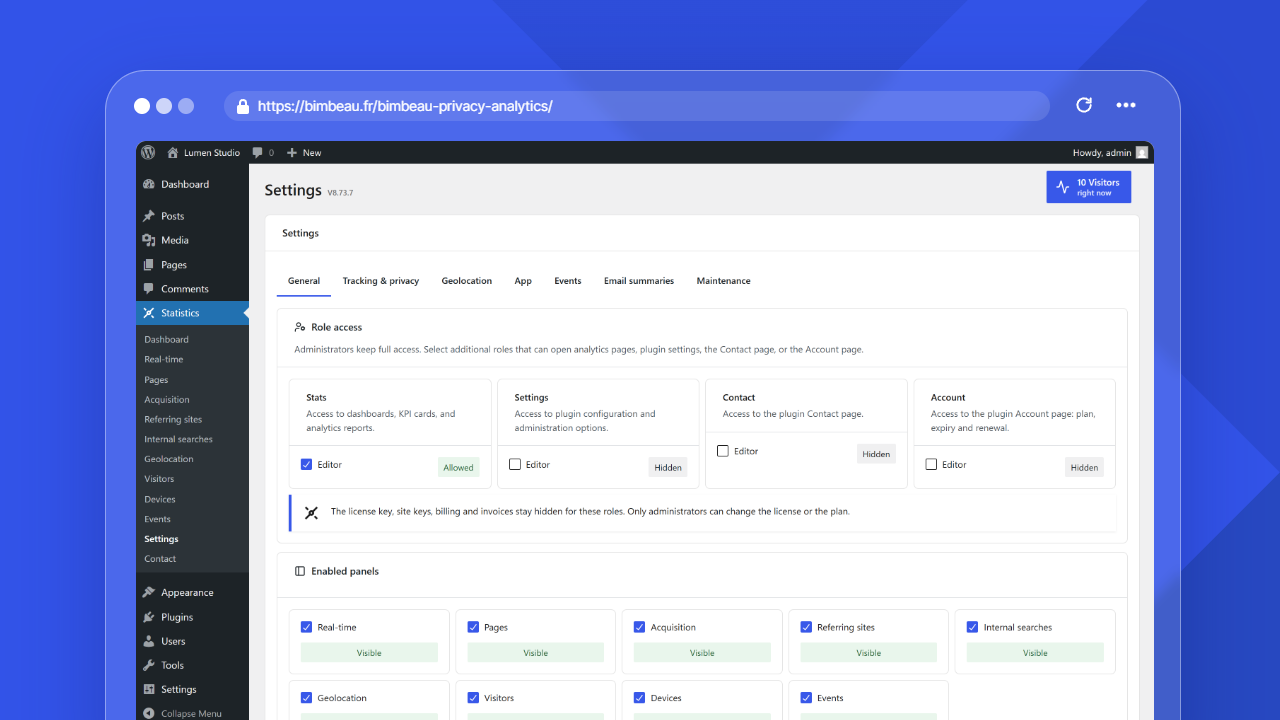
General settings control who can access BimBeau Privacy Analytics areas and, where available, how the plugin appears in the WordPress admin interface.
Where to find general settings
In the WordPress admin area, open Statistics → Settings → General.
Role access
The Role access section lets administrators delegate access to selected WordPress roles. Administrators keep full access.
| Permission group | What it allows |
|---|---|
| Stats | Access to dashboards, KPI cards, and analytics reports |
| Settings | Access to plugin configuration and administration options |
| Contact | Access to the plugin Contact page when that page is available |
| Account | Access to the plugin Account page in read-only mode: plan, expiry and renewal |
Each available role can be marked as allowed or hidden for each permission group.
Only roles with editor-level capabilities or higher (roles that can edit other users' posts or manage options) can be delegated. Lower roles such as Author, Contributor or Subscriber are not offered.
By default, the Editor role can view statistics (Stats group). No role has Settings, Contact or Account access by default.
Important
Grant only the permissions each role actually needs. Settings access can change tracking, retention, geolocation, and deletion behavior.
Roles that can view statistics
Use the Stats permission group for users who need to read reports but do not necessarily need to change plugin configuration.
Typical examples include trusted editors, content managers, or marketing users who need analytics for their work.
Roles that can modify settings
Use the Settings permission group for users who are allowed to manage BimBeau Privacy Analytics configuration.
Because settings can affect privacy behavior, data retention, geolocation, and destructive maintenance actions, this access is usually limited to administrators or trusted site managers.
Roles that can access support or contact
Use the Contact permission group for users who are allowed to open the BimBeau Privacy Analytics Contact page when it is available.
The Contact page may include account or support workflows provided by the plugin account system. Do not grant access to users who should not see site, license, or support context.
Roles that can view the Account page
Use the Account permission group for users who need to check the plan, its expiry or its renewal date without being administrators, for example a client who wants to know when the license renews.
Selected roles open the Account page in read-only mode:
- they see the plan, the expiry or renewal date, and the plugin version;
- the license key, the site keys, billing and invoices stay hidden;
- they cannot change the license or the plan: account actions are reserved for administrators.
No role has this access by default. Only administrators can change the Account group: for users who can open the settings without being administrators, the group is shown but disabled.
Good to know
The Account page still shows the name and email of the account connected to the license. Grant this access only to roles that may see this information.
Header title
The WordPress admin header always displays the localized Statistics title, in both Free and Pro. The title follows the active site or user language. The WordPress admin menu and the dashboard widget use the same localized label. No setting changes this title.
Enabled panels
The Enabled panels section is available in BimBeau Privacy Analytics Pro and controls which analytics panels are visible in the admin navigation. Hidden panels do not appear in the normal plugin navigation for users, and hiding a panel does not delete historical data. The Free edition displays every functionally available Free panel and contains no locked visibility control or teaser.
Available panel choices include Pages, Acquisition, Referring sites, Internal searches, Geolocation, Visitors, Devices, Events, and Real-time. The main dashboard and settings screens remain available to users with the required permissions.
Advanced stats dependency
Some panels depend on advanced stats. If Enable advanced stats after consent is disabled, Geolocation, Visitors, Devices, Events, and Real-time can remain hidden even if they are selected here.
Read the Pro interface customization guide
Referring site icons
The Referring site icons card contains the Display referring site favicons option. It is disabled by default.
- When disabled, reports show a local generic icon and no referrer domain is contacted for favicons.
- When enabled, BimBeau Privacy Analytics retrieves the favicons of referring sites, validates them on the server, and displays locally cached copies in reports.
The configuration assistant also asks about this option in its last choice step.
Quick stats
Some BimBeau Privacy Analytics versions or plans include Quick stats options for WordPress content types.
When enabled for a post type, Quick Stats can add a Views (30d) column with compact traffic charts to the content list and show a stats summary metabox while editing each item.
Use Quick Stats for content types where editors need at-a-glance performance information inside the normal WordPress editing workflow.
Good to know
Quick Stats are a Pro feature. They appear only when your active plan and license state make the related controls available.
Security recommendations
- Keep full administrative access limited to trusted administrators.
- Delegate Stats access separately from Settings access when possible.
- Avoid giving settings access to roles used by many people.
- Review role access after adding new WordPress roles or changing staff responsibilities.
- Remove access for roles that no longer need analytics or support workflows.
- Grant Account access only to roles that need to follow the plan or its renewal.
Related pages
First configuration assistant
The standalone Configuration assistant card appears near the end of General settings. Choose Restart the assistant to reset onboarding progress and review tracking, local GeoIP, and referrer favicon choices from step 1. The assistant loads saved functional settings, retains edits while you move forward or backward, and applies settings when you finish. Resetting the assistant does not reset plugin settings or analytics data. Finish later keeps the current onboarding step and the answers already given (they are applied to the settings only when you finish), prevents repeated automatic opening, and leaves a reminder that resumes at the same step. External contact occurs only when you explicitly choose an action such as downloading the local GeoIP database.